Every tool, step by step

How each Pixmith tool works, with its shortcut and modifier keys. Cmd means Ctrl and Option means Alt on Windows and Linux. Every single-key shortcut can be changed in Preferences → Keyboard.

Basics

Colors in Pixmith

Colors

You paint with a primary and a secondary color.

  1. Pick colors in the Colors panel or the palette.
  2. Left button paints with the primary color, right button with the secondary.
  3. Press X to swap them.
Option+click
Pick a color from the canvas with any drawing tool
Brush size in Pixmith

Brush size

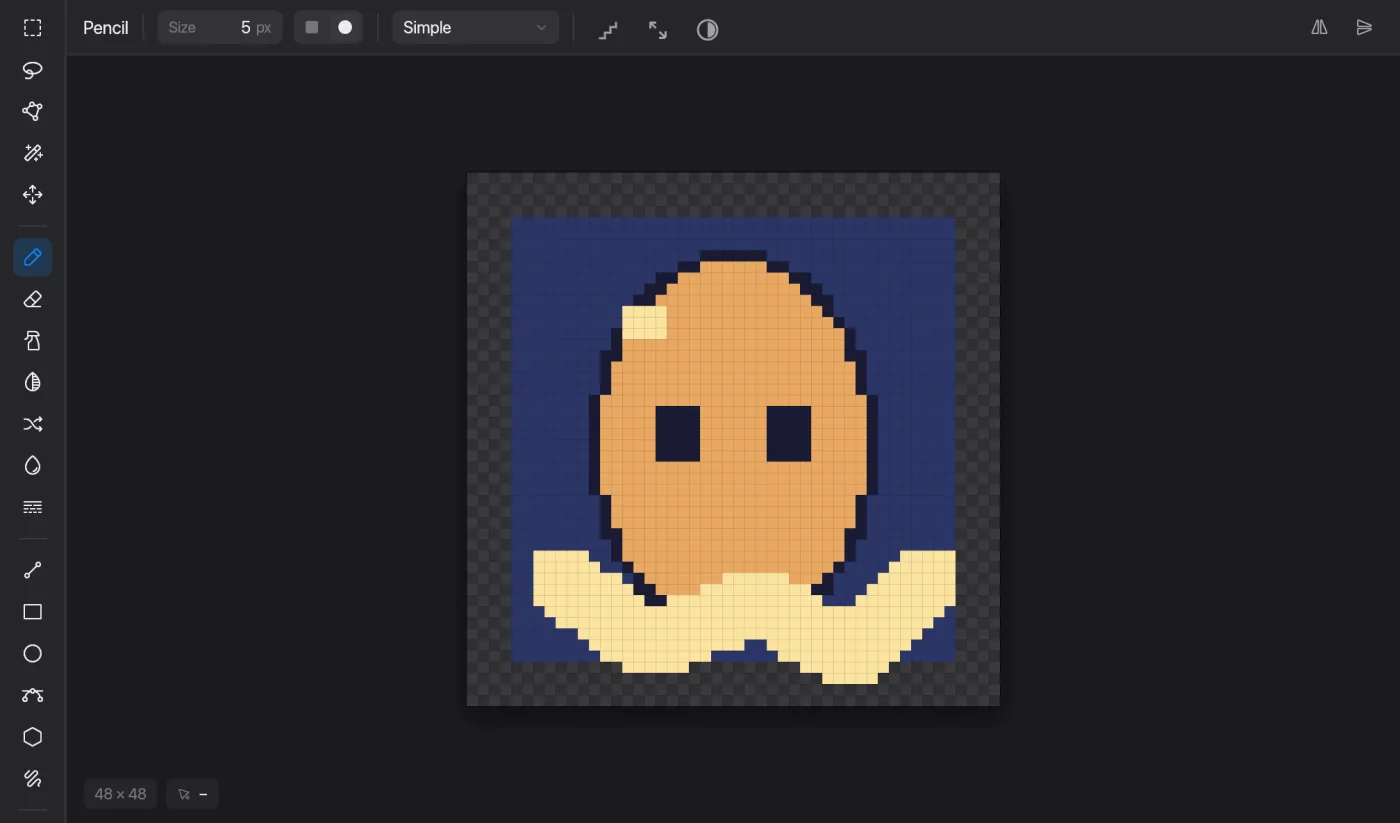
Size and shape of the brush, from 1 to 64 pixels.

  1. Press [ for smaller and ] for larger, or use Size in the options bar.
  2. Choose a square or round tip next to it.

Select some pixels and choose Drawing → Brush from Selection (Cmd+B) to paint with them as a custom brush.

Zoom and view in Pixmith

Zoom and view

Move around the canvas and keep your place.

  1. Zoom with Cmd+= and Cmd+-, or Cmd+scroll and pinch.
  2. Cmd+0 fits the sprite in the window, Cmd+1 shows it at actual size.
  3. Toggle the pixel grid with Cmd+'.
Cmd+Z
Undo
Shift+Cmd+Z
Redo

Paint

Pencil in Pixmith

Pencil

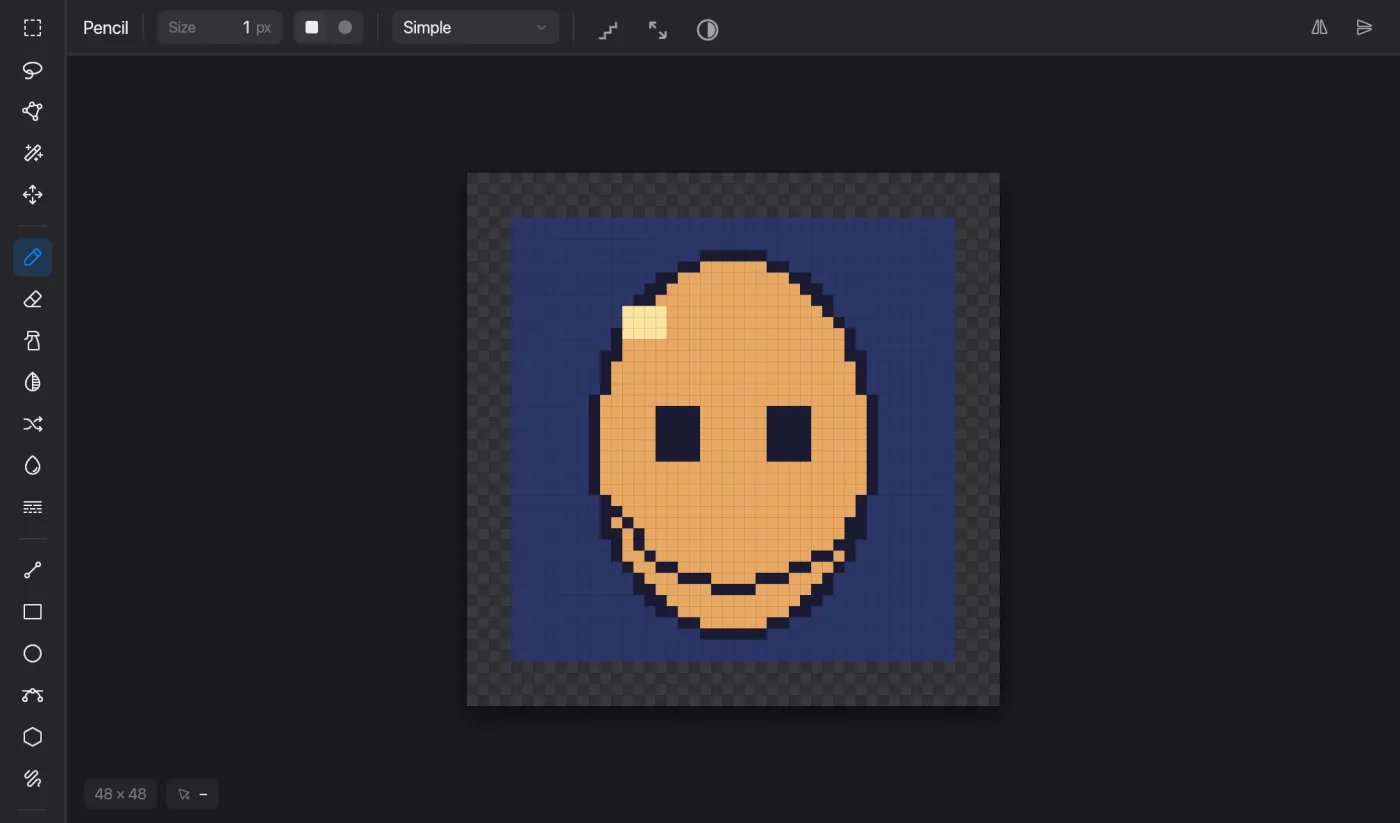
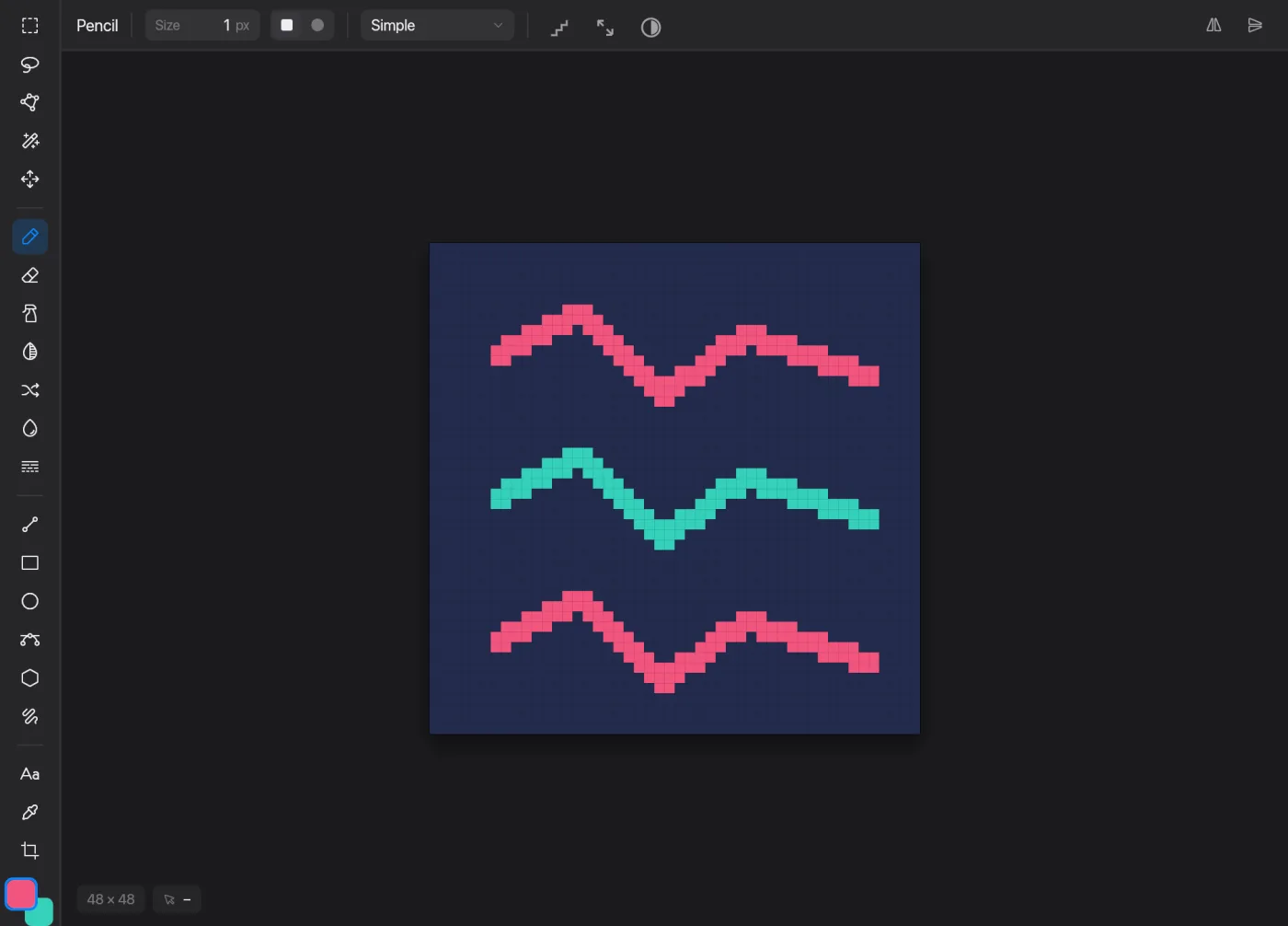
The main drawing tool: hard pixels, no blur.

  1. Press and drag on the canvas.
  2. Turn on Pixel-perfect in the options bar to remove L-shaped corners from your lines.
Right-drag
Draw with the secondary color
Option+click
Pick a color

With a tablet, the pressure chips make size and opacity follow the pen.

Eraser in Pixmith

Eraser

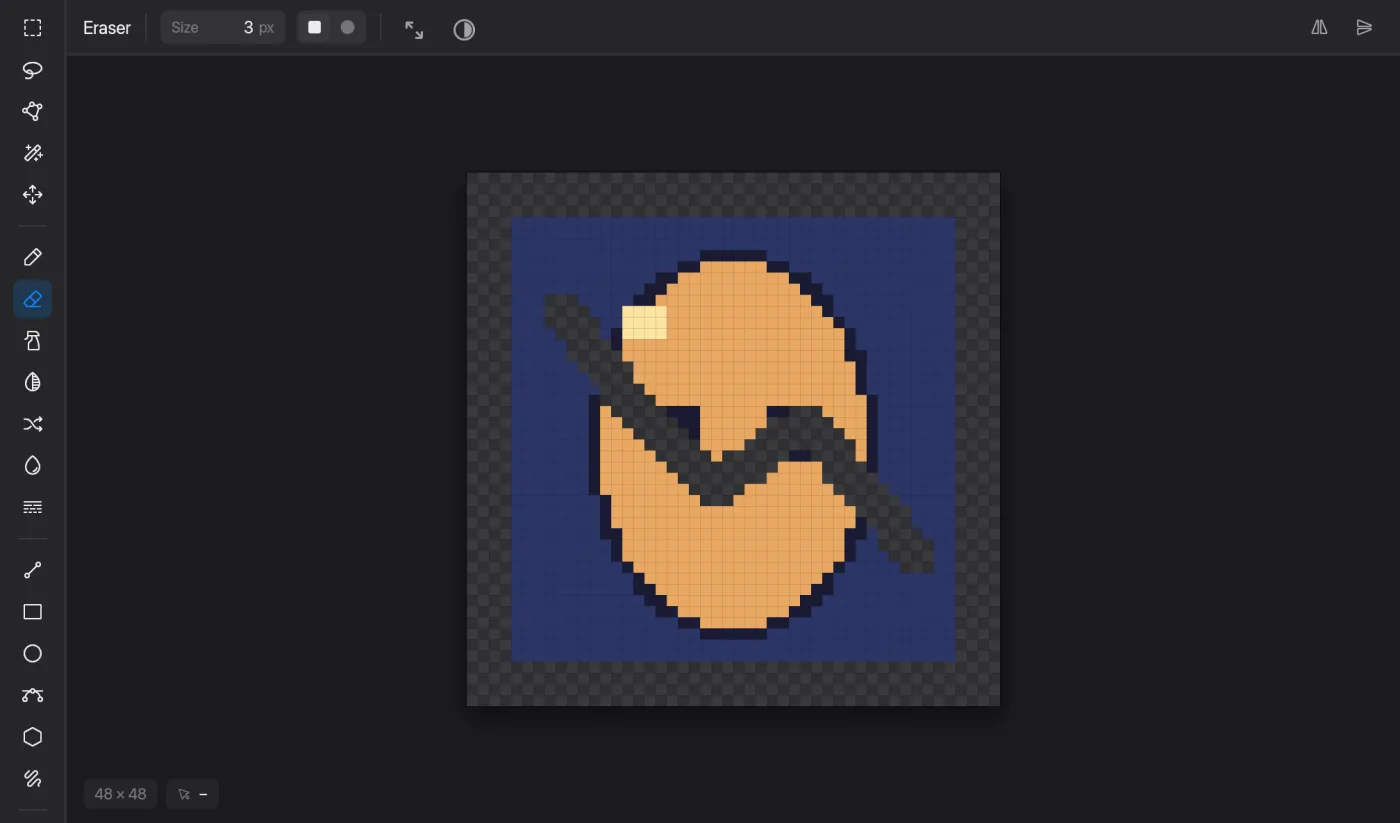
Clears pixels to transparent.

  1. Drag over the pixels to clear.
  2. Change the size with [ and ].
Spray in Pixmith

Spray

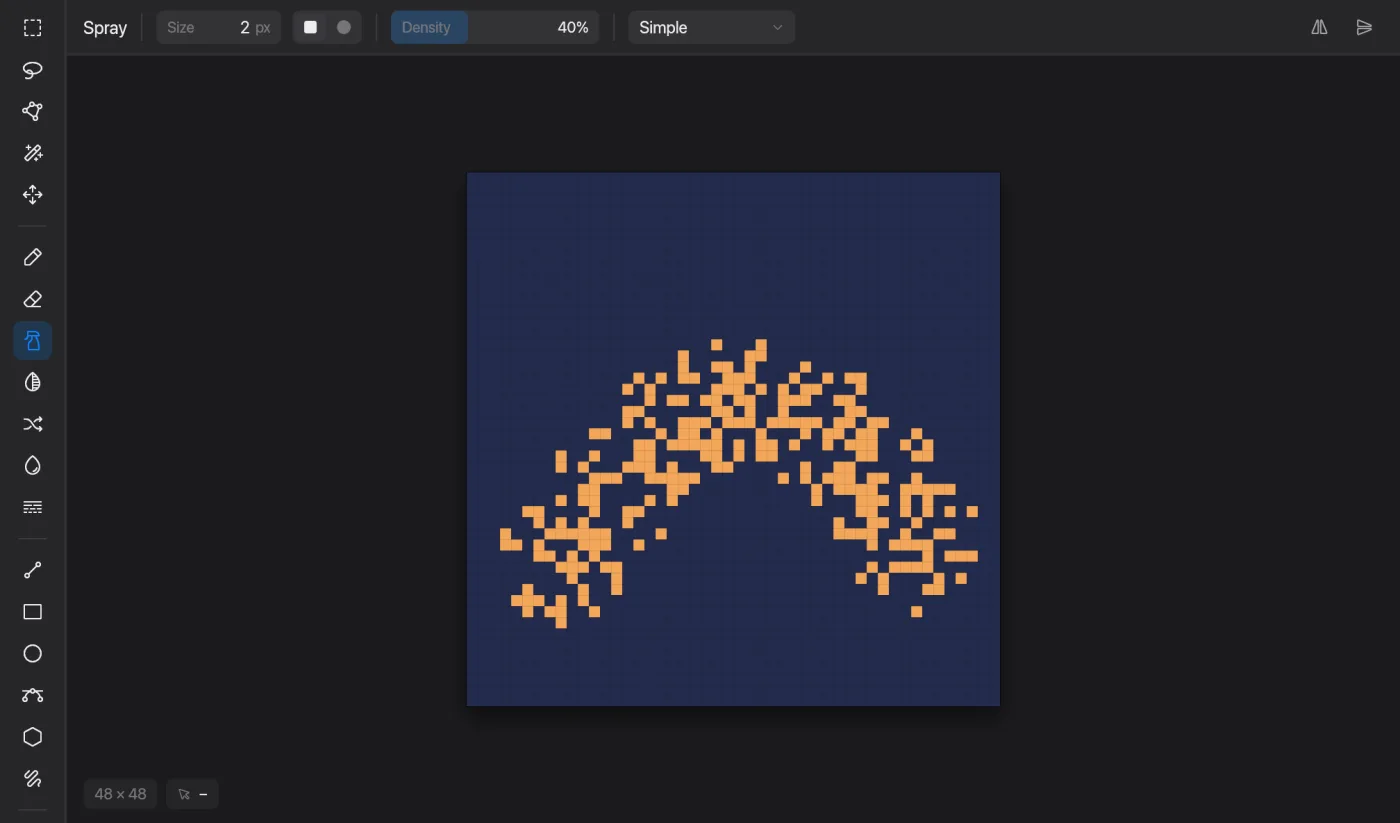
Scatters pixels around the cursor, like an airbrush.

  1. Hold and drag: it keeps spraying while the button is down.
  2. Set Density (5–100%) in the options bar. A bigger size sprays a wider circle.
Blur in Pixmith

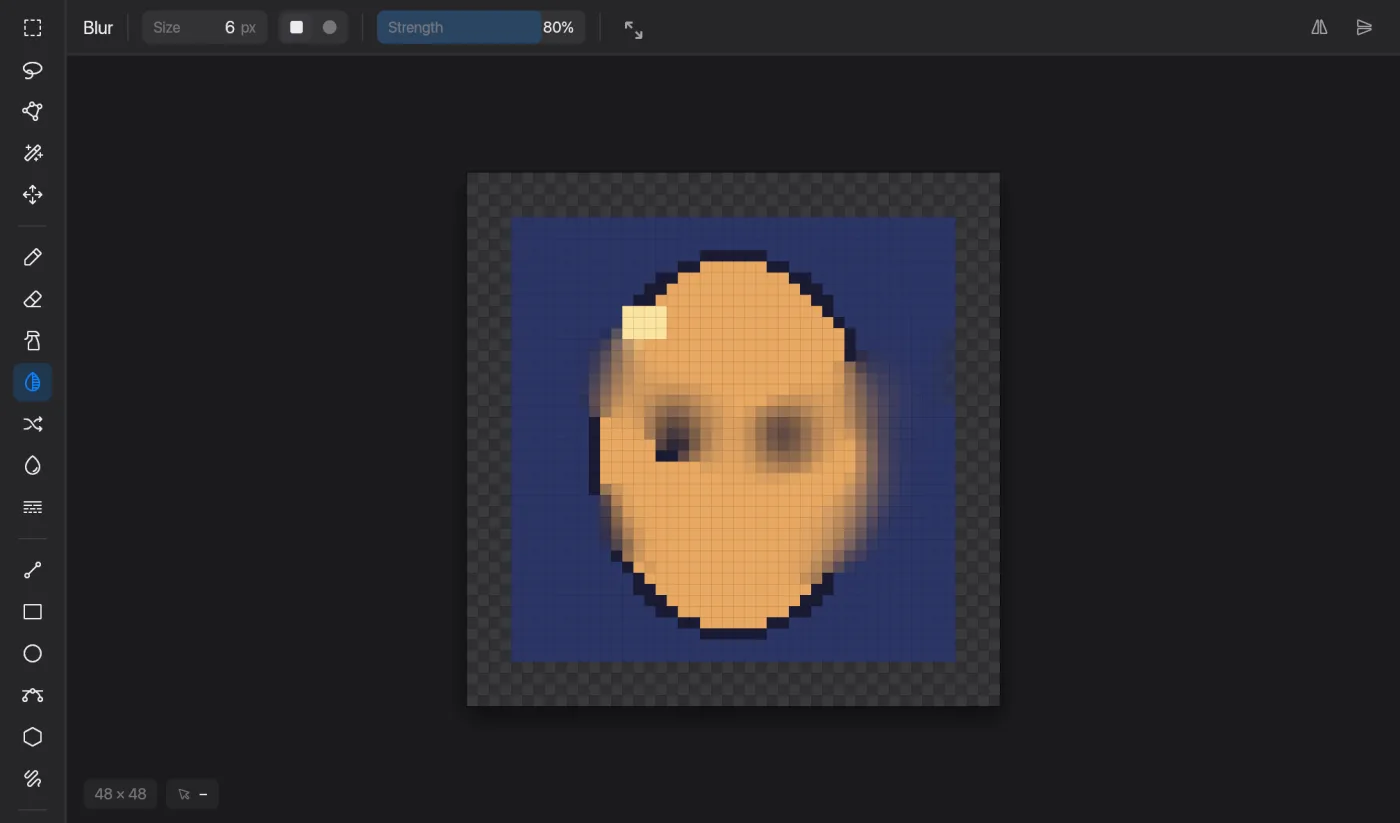
Blur

Softens the pixels you brush over.

  1. Drag over the area to soften.
  2. Set Strength (5–100%) in the options bar.
Jumble in Pixmith

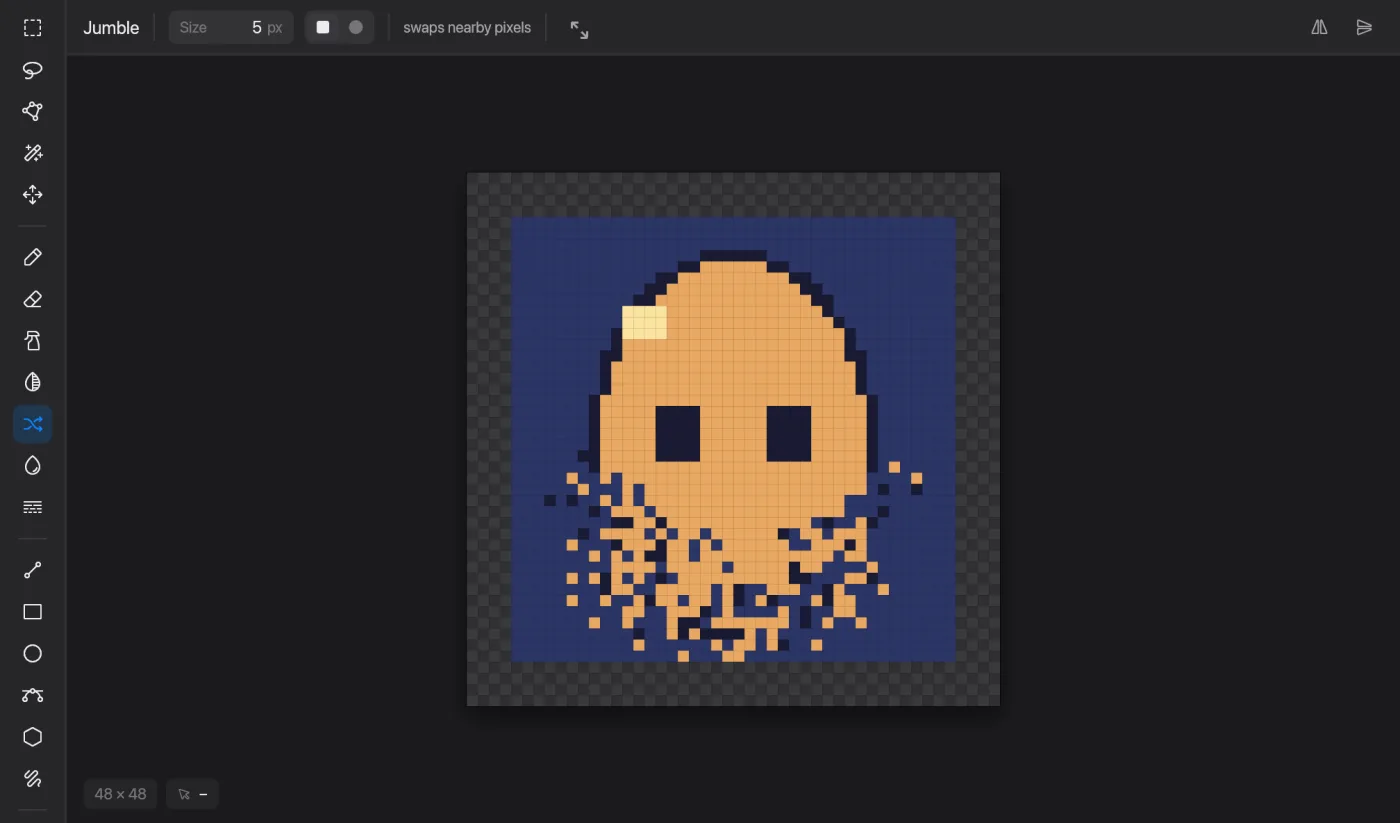
Jumble

Swaps nearby pixels for a noisy, hand-made texture.

  1. Drag over the area.
  2. Great for grass, dirt, rock and other rough surfaces.
Paint Bucket in Pixmith

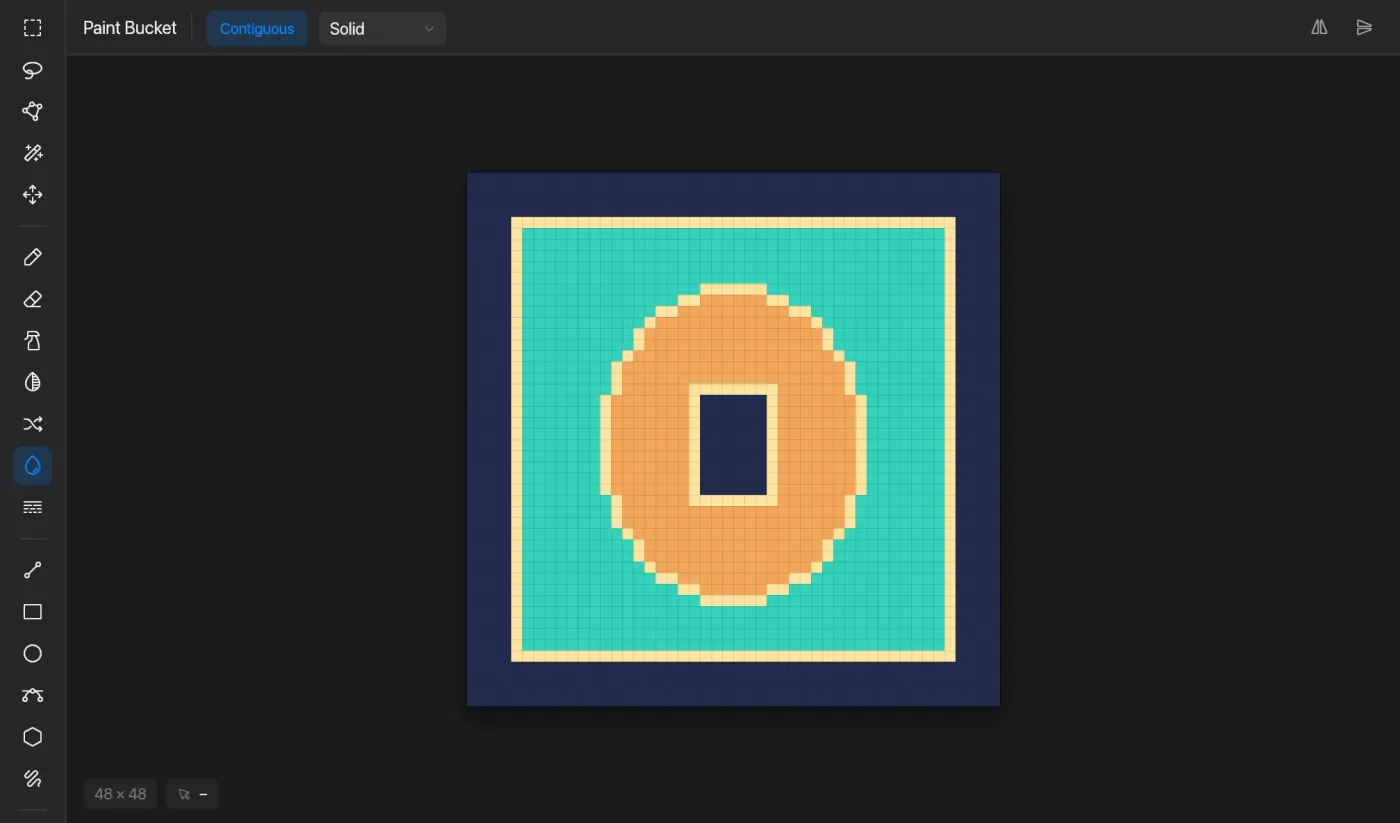
Paint Bucket

Fills an area with one color or a dither pattern.

  1. Click inside the area to fill.
  2. Turn Contiguous off to replace every pixel of that color in the cel.
  3. Choose a Pattern (Checker, 25%, 50%, 75%) to dither between the primary and secondary colors.
Right-click
Fill with the secondary color
Gradient in Pixmith

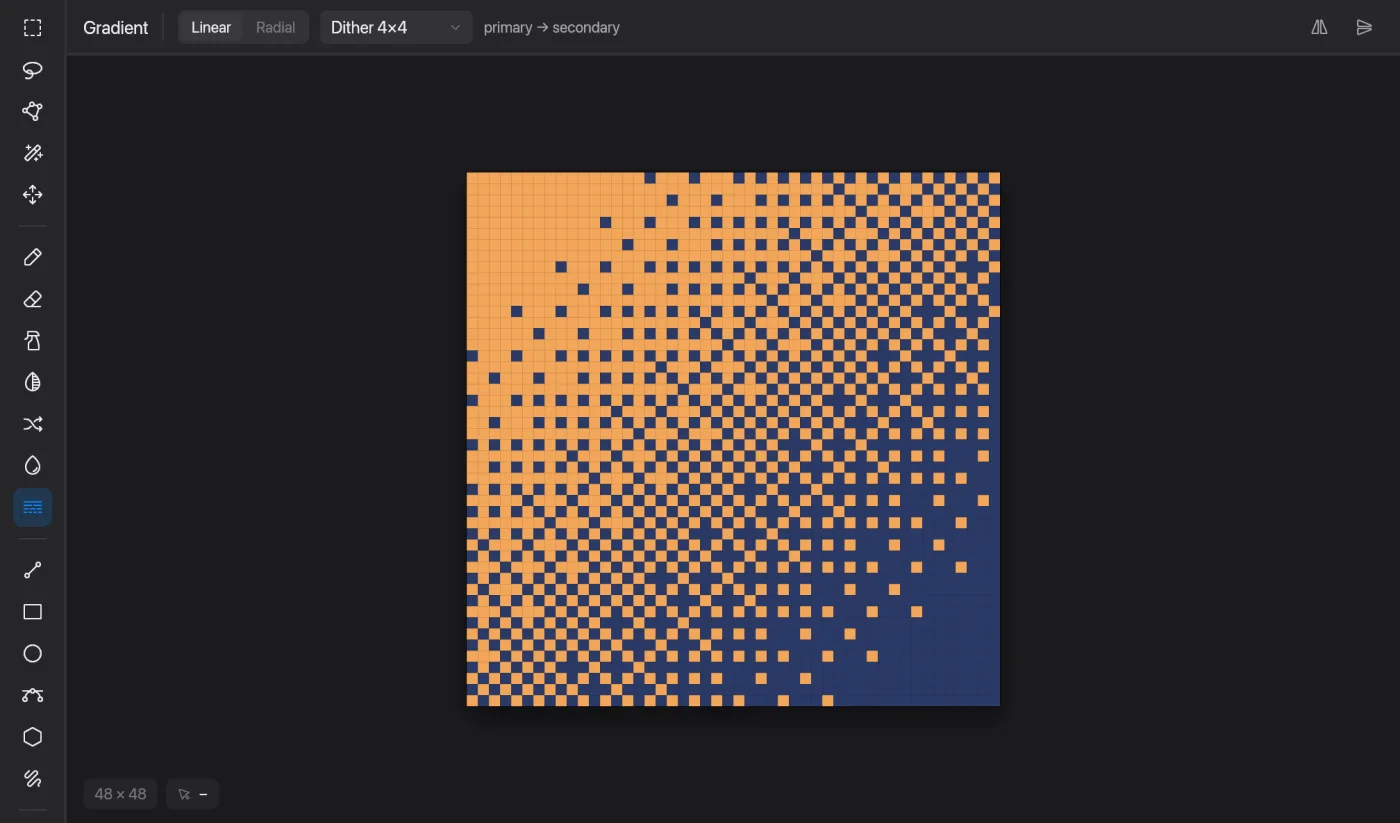
Gradient

Blends from the primary to the secondary color.

  1. Drag from where the gradient starts to where it ends.
  2. Choose Linear or Radial, and Smooth or a 2×2, 4×4 or 8×8 dither for a pixel-art look.
Shift+drag
Snap the direction to 45°
Right-drag
Reverse the colors

Shapes

Line in Pixmith

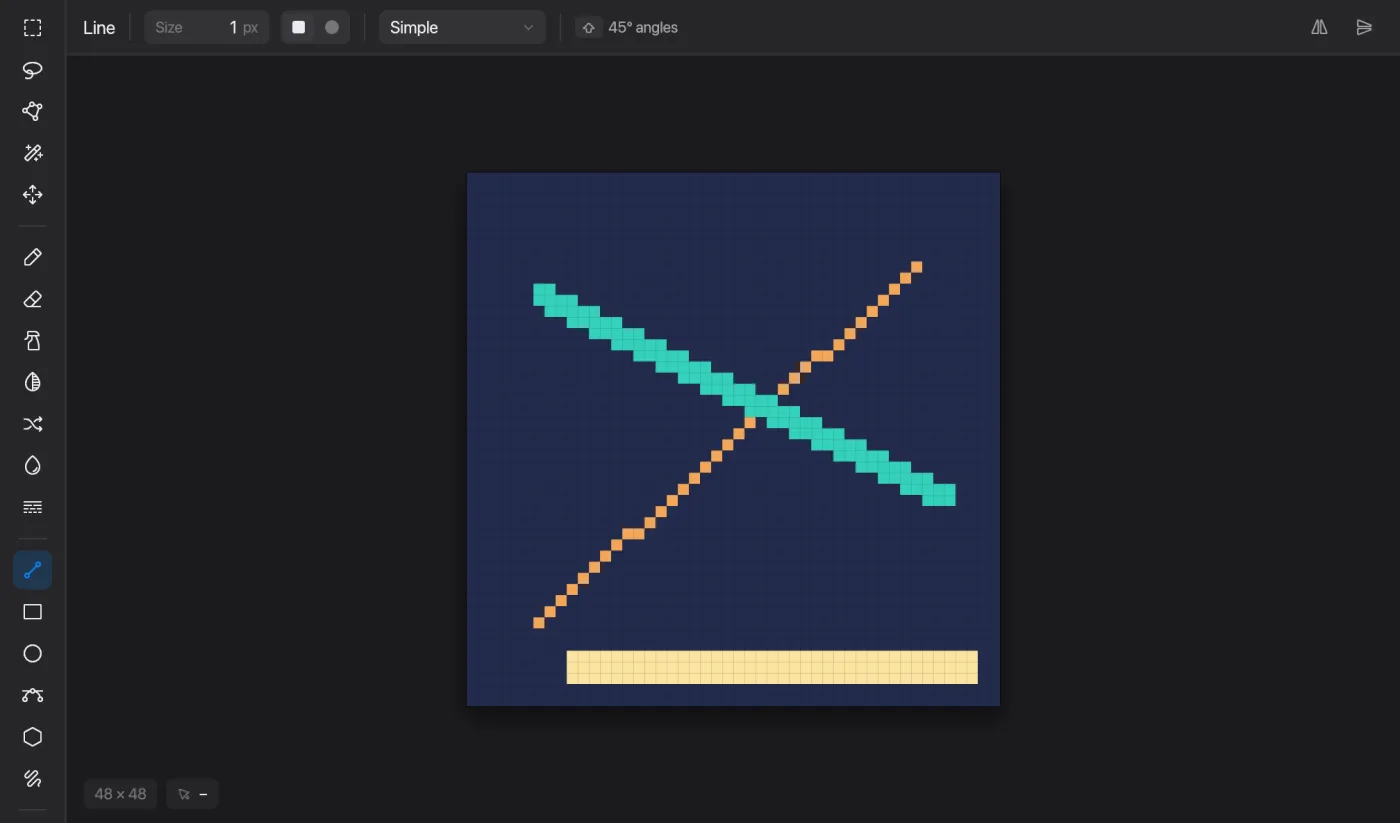
Line

Straight pixel lines.

  1. Drag from the start point to the end point.
Shift+drag
Lock the angle to 45° steps
Rectangle in Pixmith

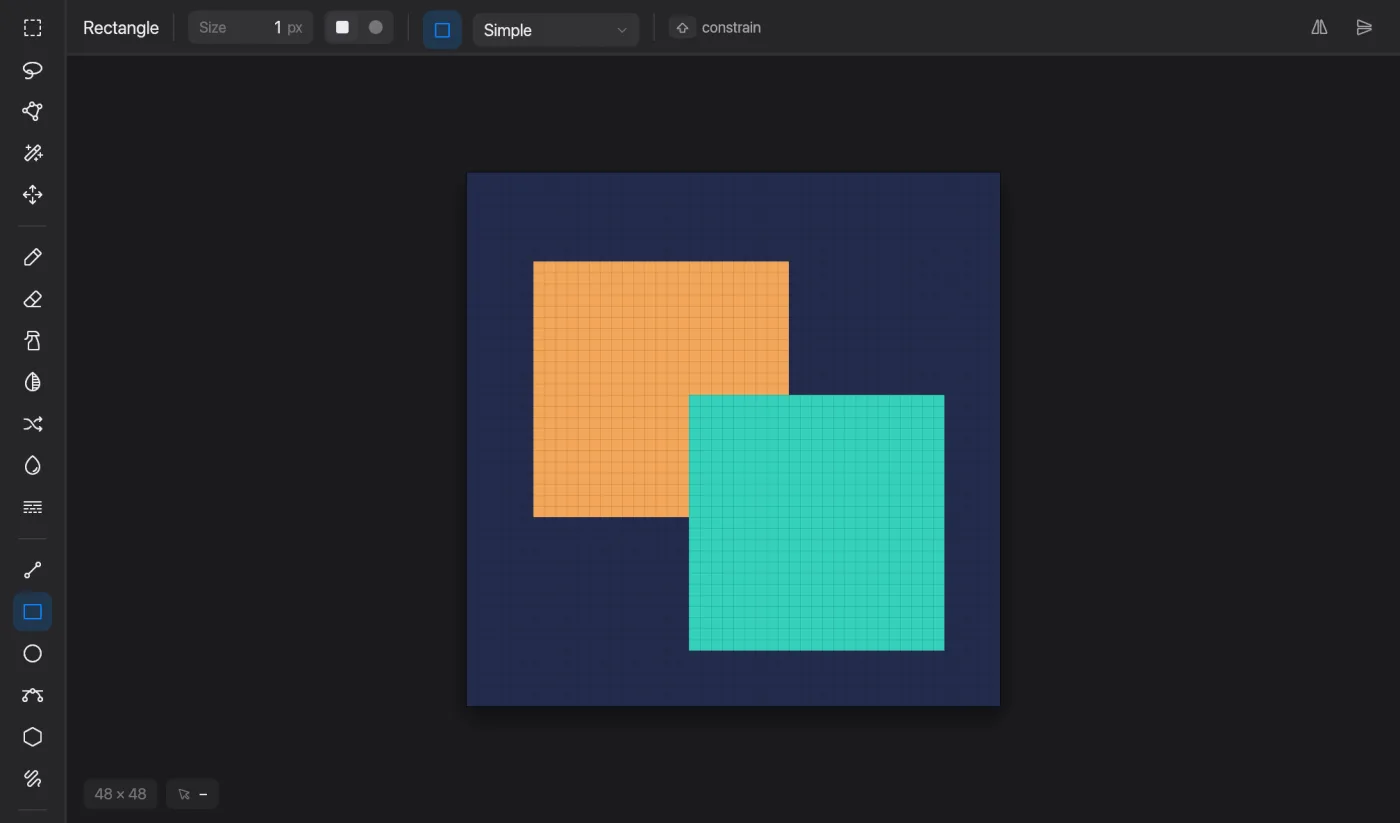
Rectangle

Boxes, outlined or filled.

  1. Drag from one corner to the opposite corner.
  2. Turn on Filled in the options bar for a solid box.
Shift+drag
Make a square
Ellipse in Pixmith

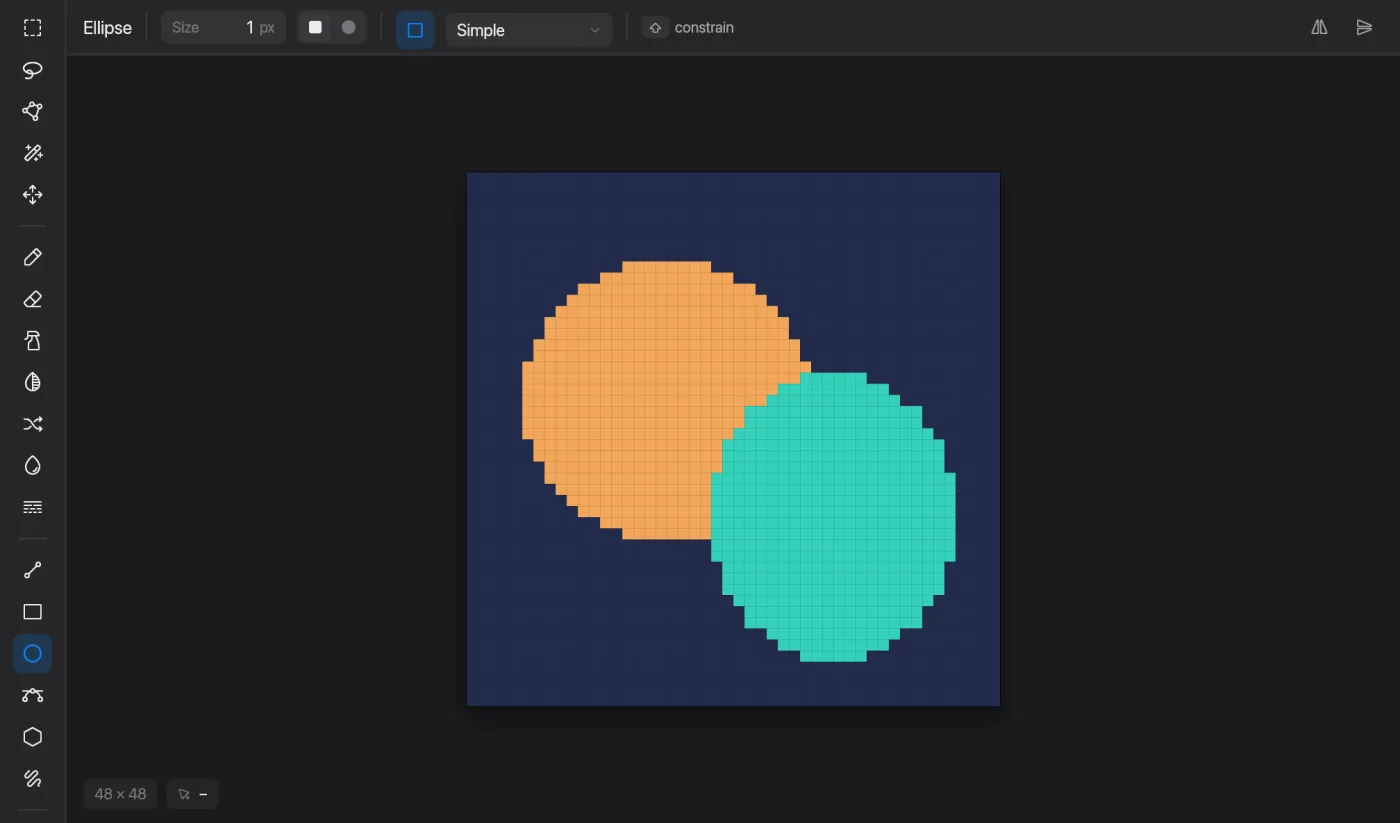
Ellipse

Ovals and circles, outlined or filled.

  1. Drag out the bounding box.
  2. Turn on Filled for a solid shape.
Shift+drag
Make a circle
Curve in Pixmith

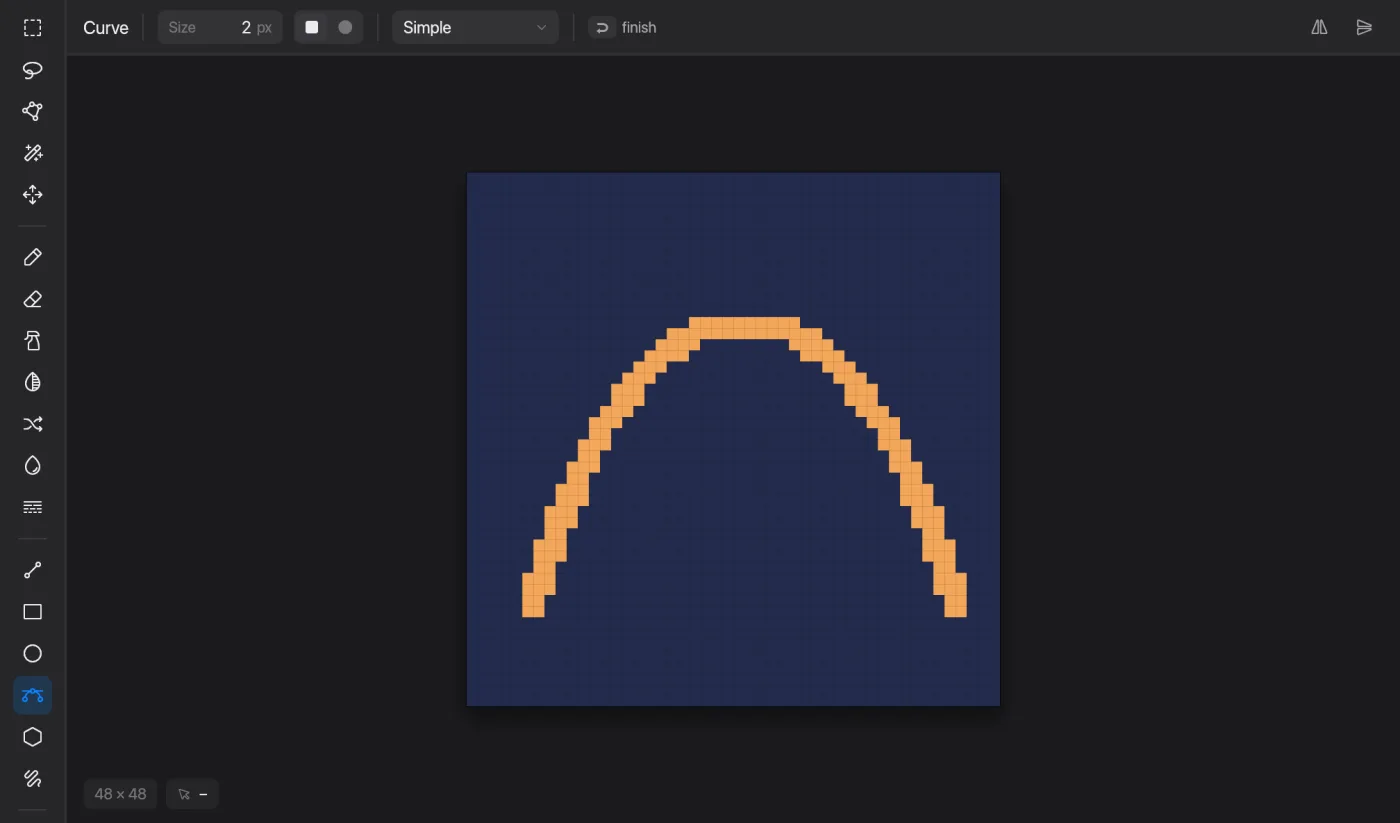
Curve

Smooth Bézier curves in pixels.

  1. Drag the line from start to end and release.
  2. Drag again to bend it with the first control point.
  3. Drag once more for the second control point: the curve is placed.
Return
Finish early
Esc
Cancel
Polygon in Pixmith

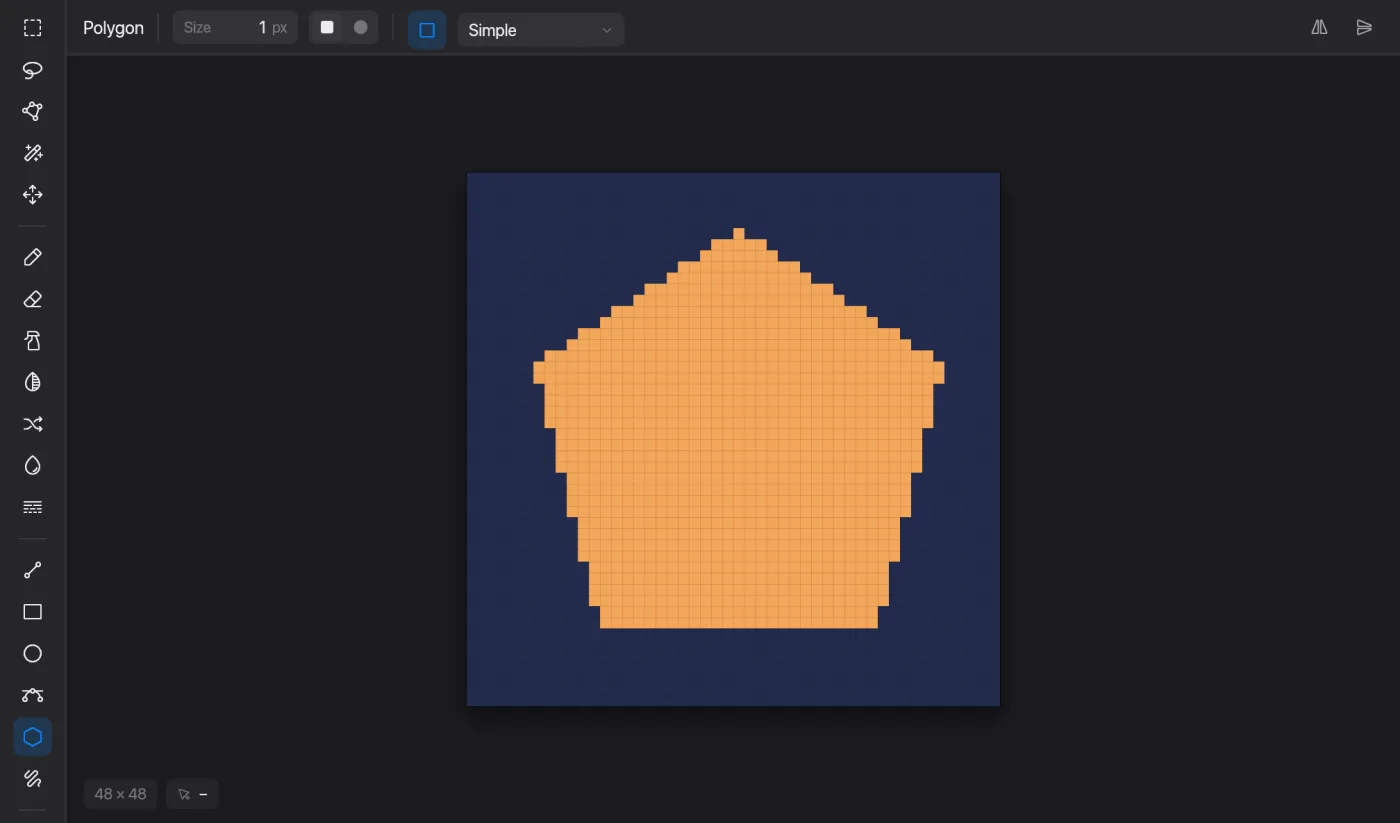
Polygon

Shapes with any number of corners.

  1. Click to add each corner; a preview follows the cursor.
  2. Double-click or press Return to finish. Turn on Filled for a solid shape.
Esc
Cancel
Contour in Pixmith

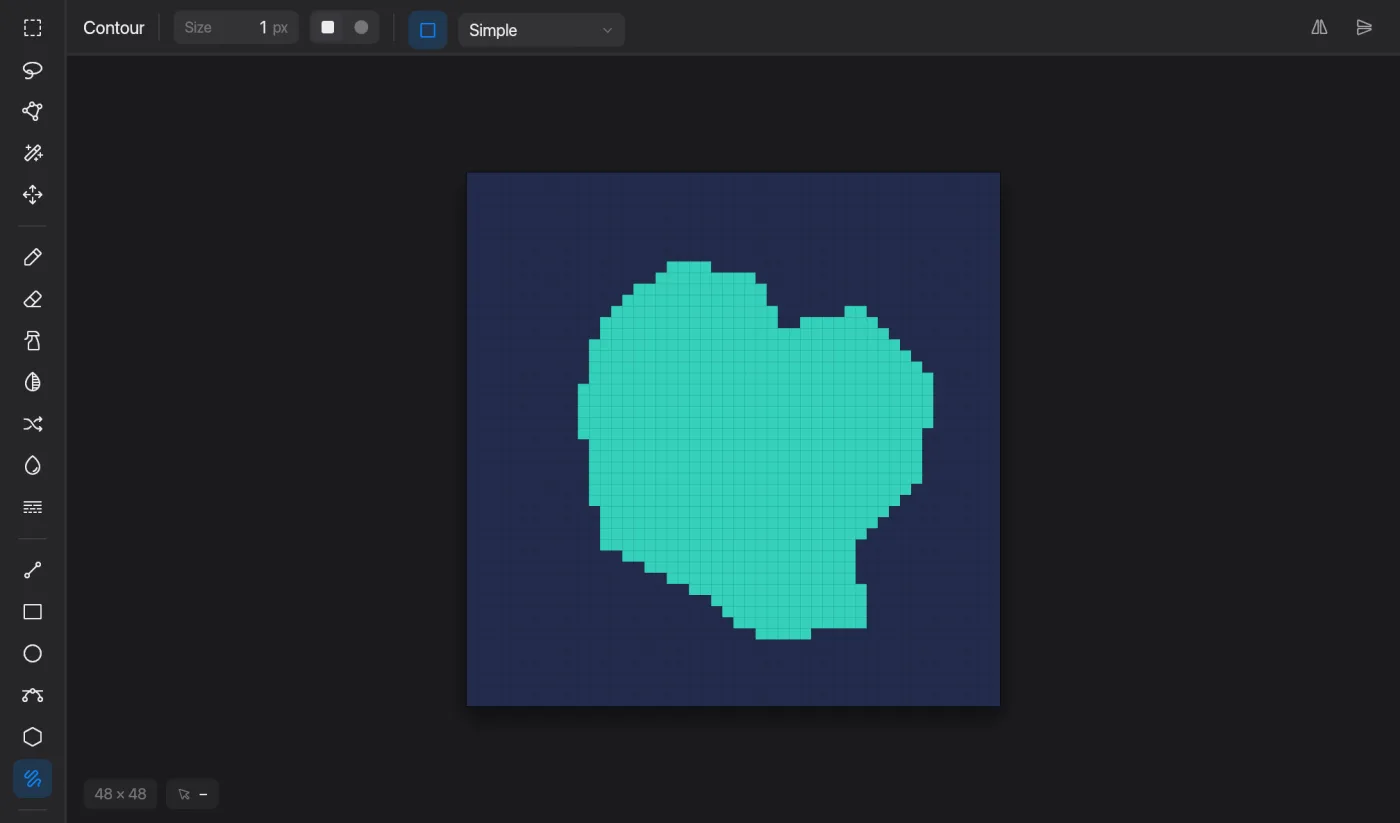
Contour

A freehand outline that closes itself.

  1. Press and draw the outline.
  2. Release: the path closes. With Filled on, the inside is filled too.

Select and move

Rectangular Marquee in Pixmith

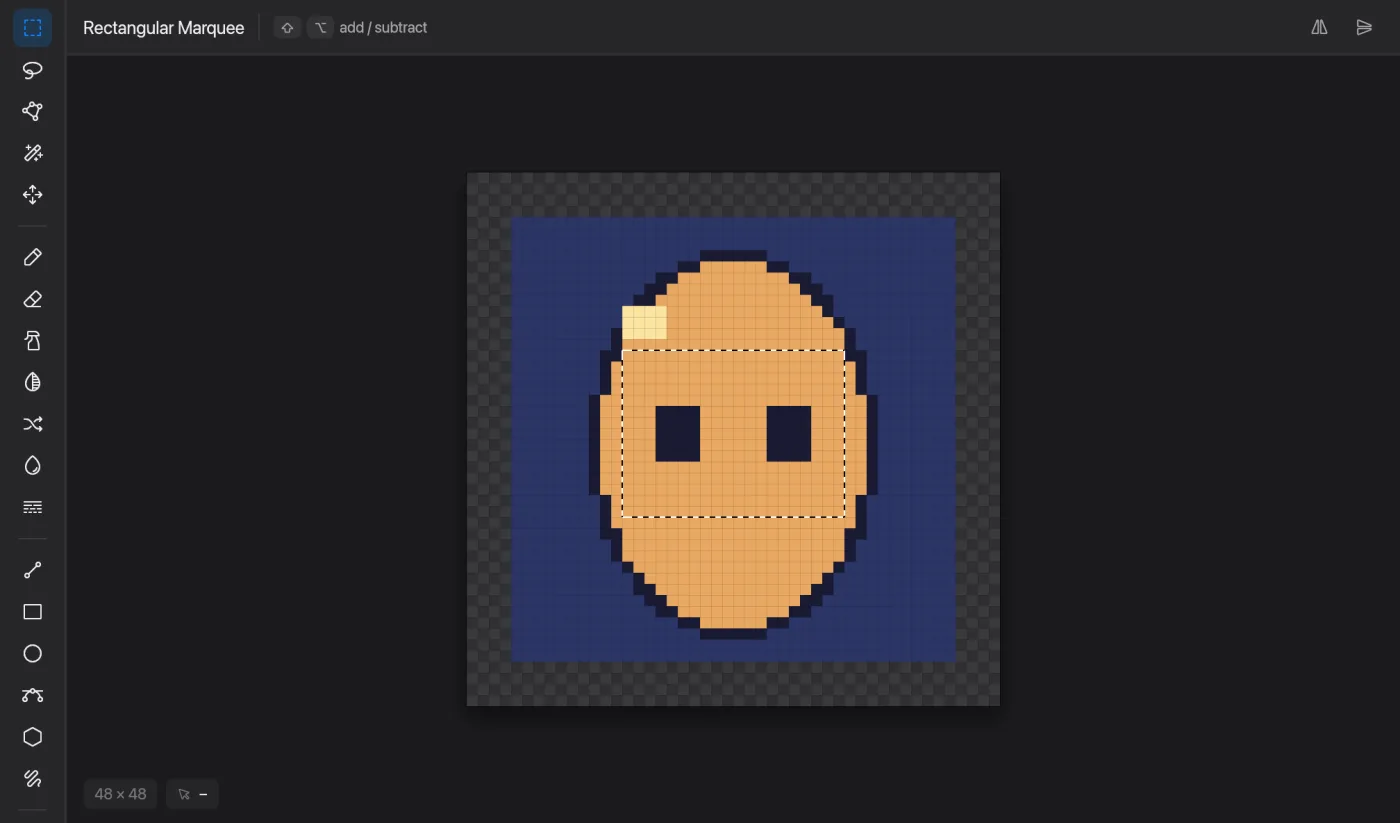
Rectangular Marquee

Select a rectangle of pixels.

  1. Drag over the area.
  2. Click without dragging to clear the selection.
Shift+drag
Add to the selection
Option+drag
Subtract from it
Cmd+A
Select all
Cmd+D
Deselect
Shift+Cmd+I
Invert
Lasso in Pixmith

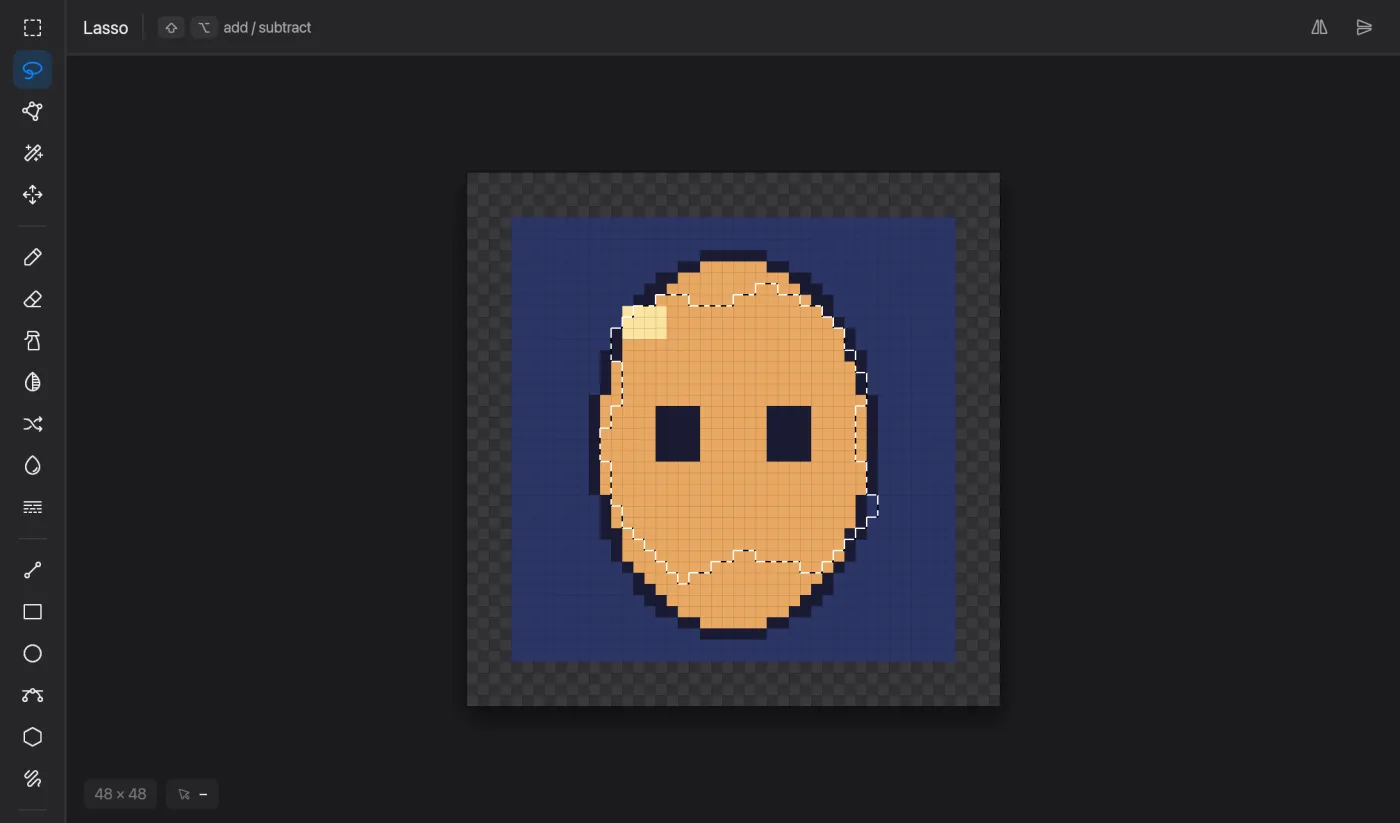
Lasso

Select a freehand area.

  1. Drag around the pixels you want.
Shift
Add
Option
Subtract
Polygonal Lasso in Pixmith

Polygonal Lasso

Select with straight edges.

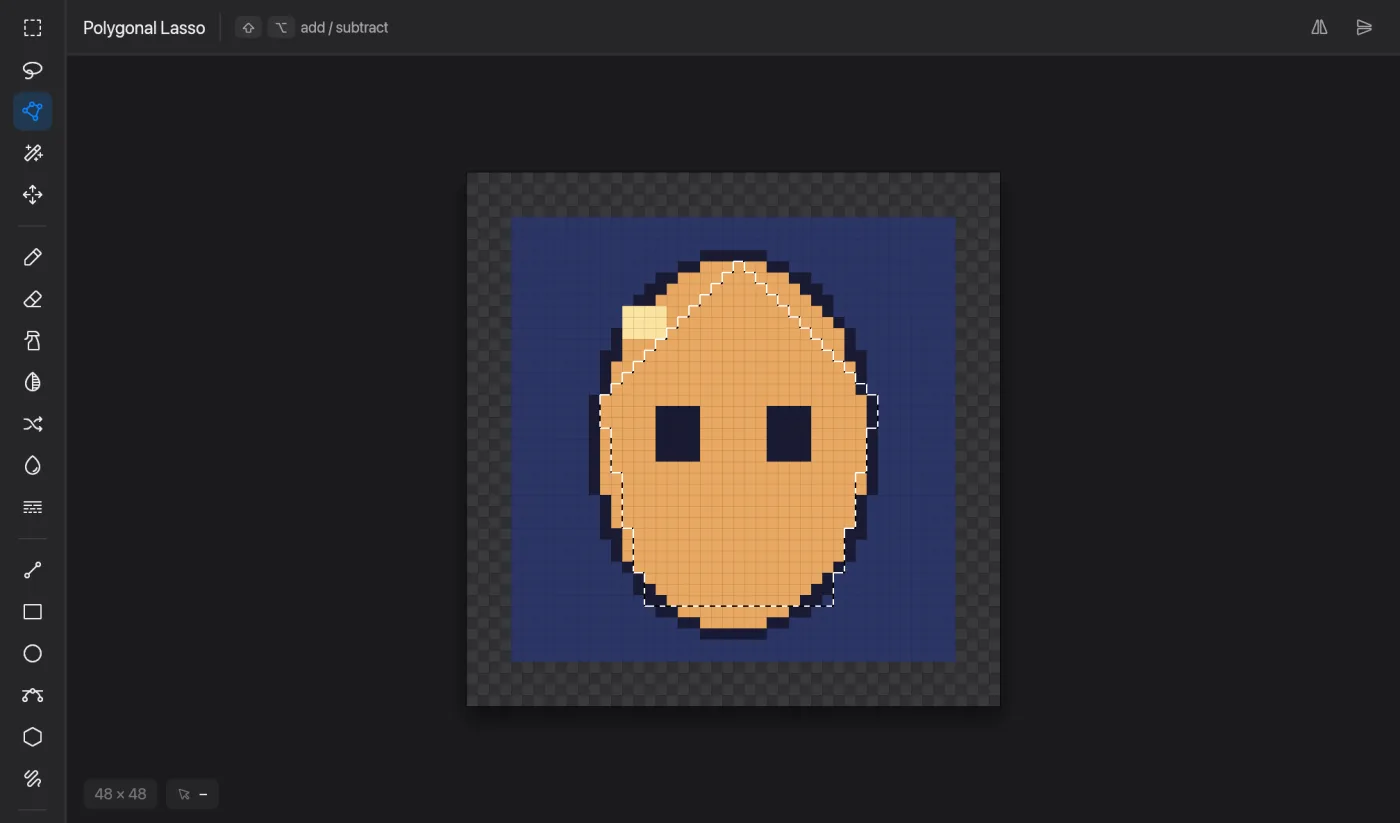
  1. Click each corner of the area.
  2. Double-click or press Return to close it.
Shift (first click)
Add
Option (first click)
Subtract
Esc
Cancel
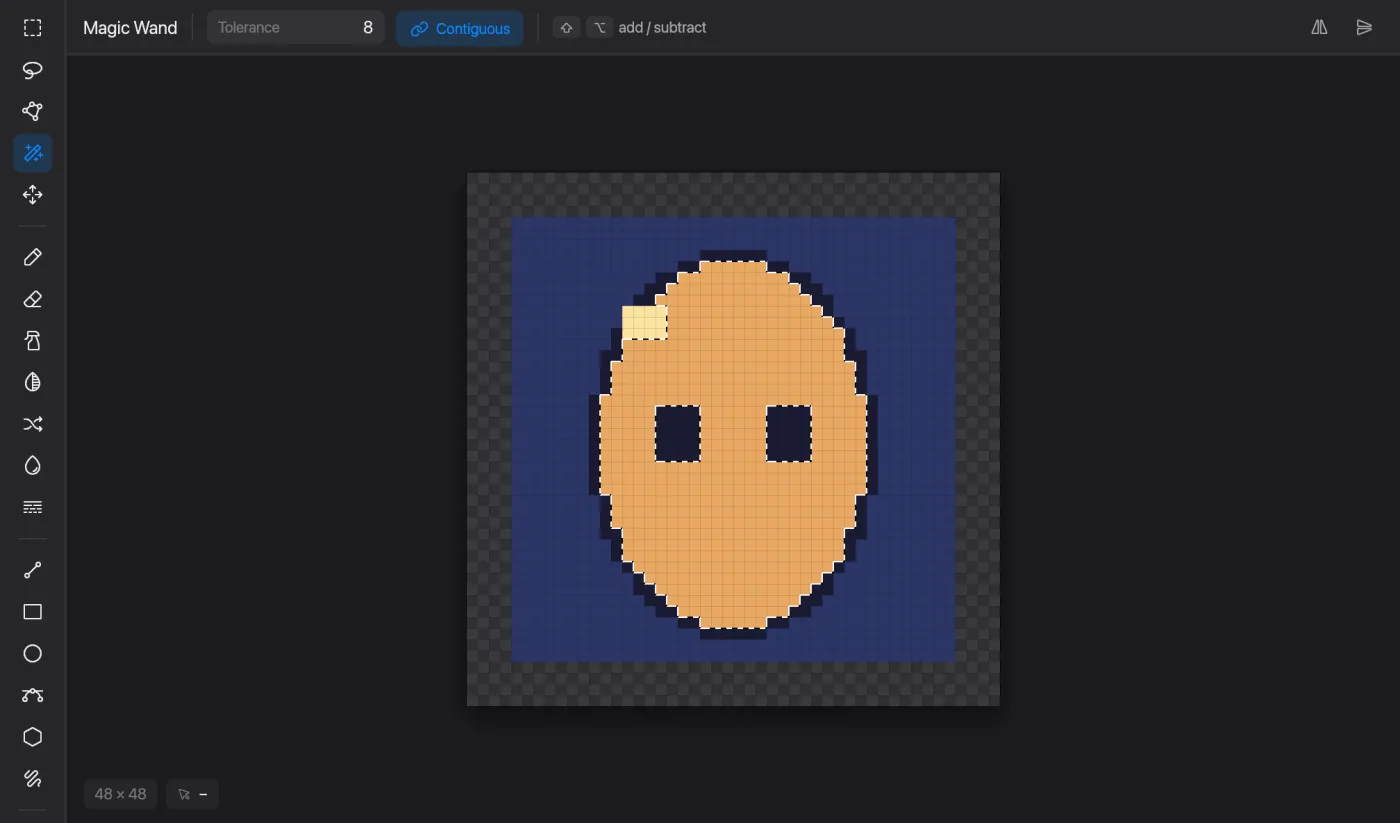
Magic Wand in Pixmith

Magic Wand

Select pixels by color in one click.

  1. Click a color.
  2. Raise Tolerance (0–255) to take in similar colors; switch Contiguous to Global to select that color everywhere.
Shift+click
Add
Option+click
Subtract

Select → Select by Color (Option+Cmd+B) does the same from the menu.

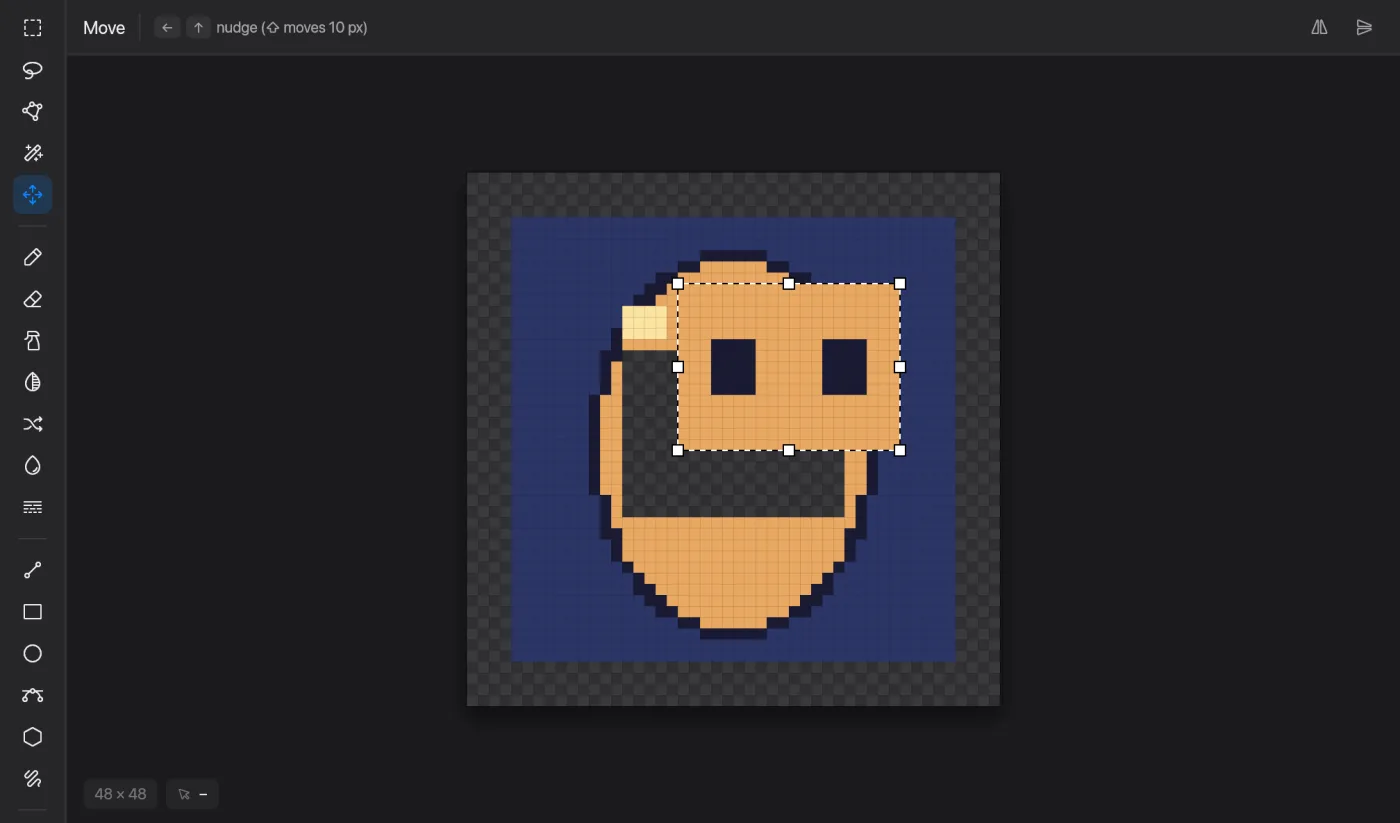
Move in Pixmith

Move

Move the selected pixels, or the whole cel when nothing is selected.

  1. Drag to move.
  2. Pasted pixels stay floating with the Move tool; press Return to drop them.
  3. Drag a handle of the selection box to start a free transform.
Arrow keys
Nudge 1 pixel
Shift+Arrow
Nudge 10 pixels
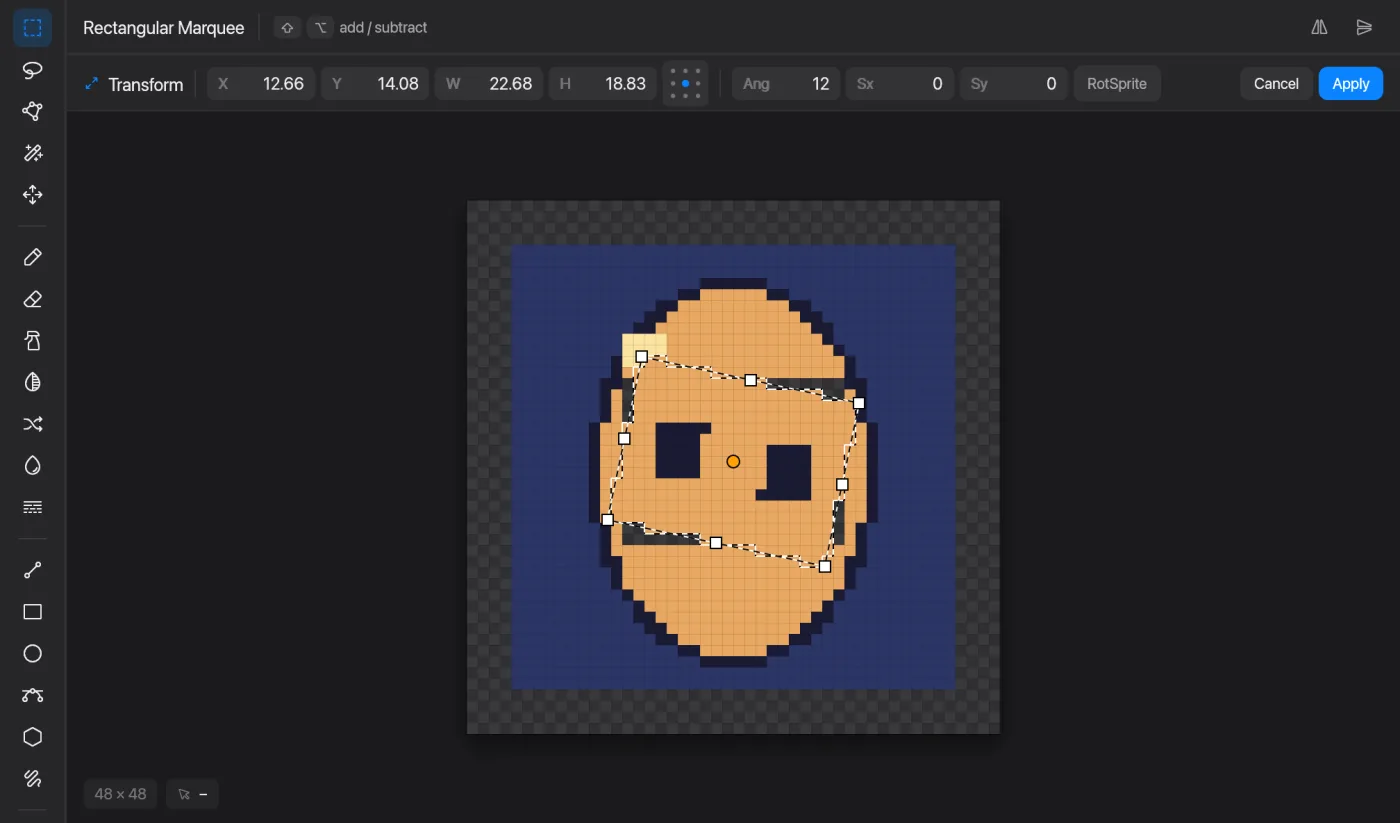
Free Transform in Pixmith

Free Transform

Scale, rotate, skew and move a selection.

  1. Select pixels and choose Edit → Free Transform.
  2. Drag a corner or edge to scale, drag outside the box to rotate, drag inside to move. The orange dot is the pivot.
  3. Type exact values in the bar (X, Y, W, H, angle). Turn on RotSprite for clean pixel-art rotation.
  4. Press Return to apply or Esc to cancel.
Cmd+edge drag
Skew
Shift
Keep proportions

Text, picker and slices

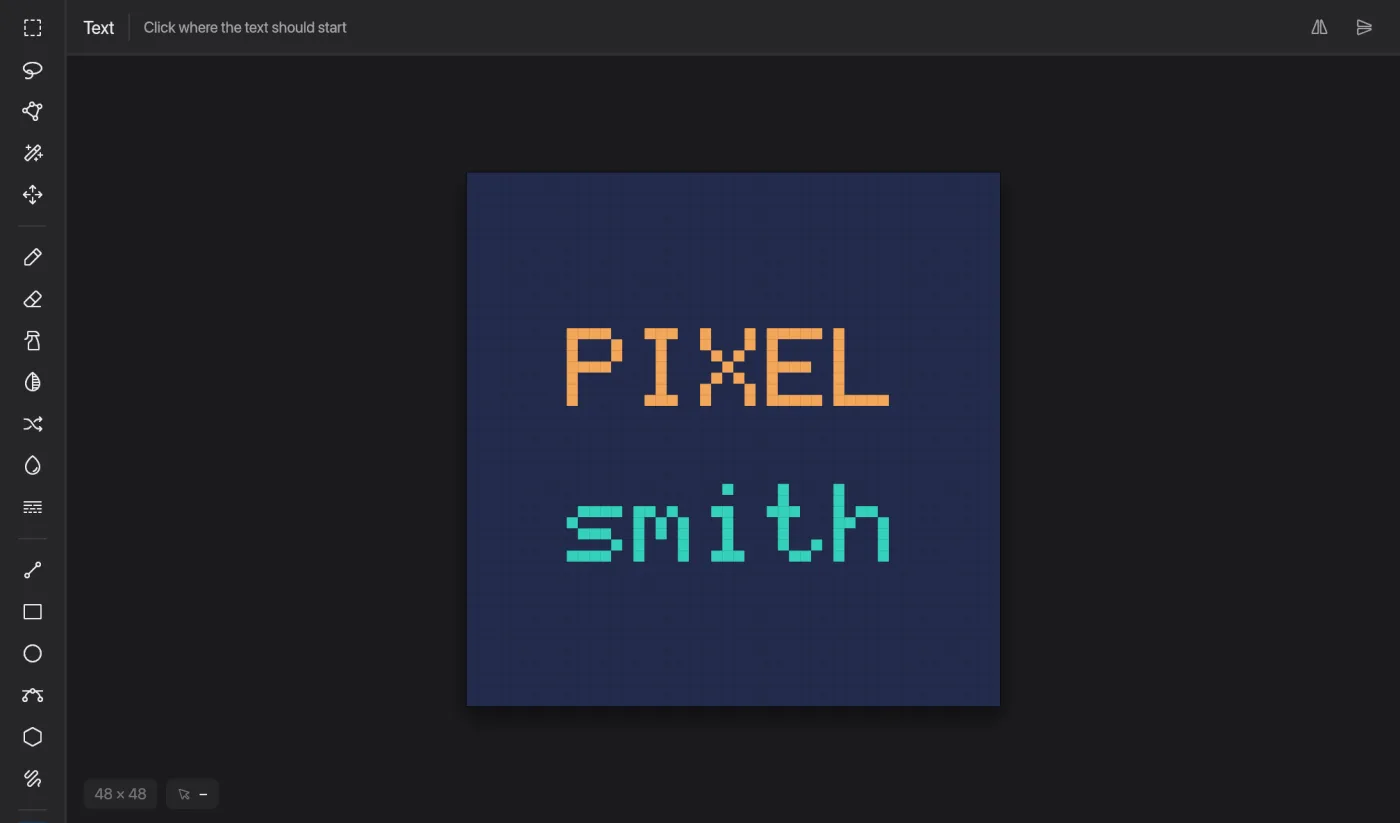
Text in Pixmith

Text

Pixel text, crisp at any size.

  1. Click where the text should start.
  2. Type in the Text window and press Place.
  3. Set Pixel scale (1–16×) for the built-in pixel font, or tick “Use system font” to pick a font and size; it is drawn without antialiasing.
Right-click
Use the secondary color
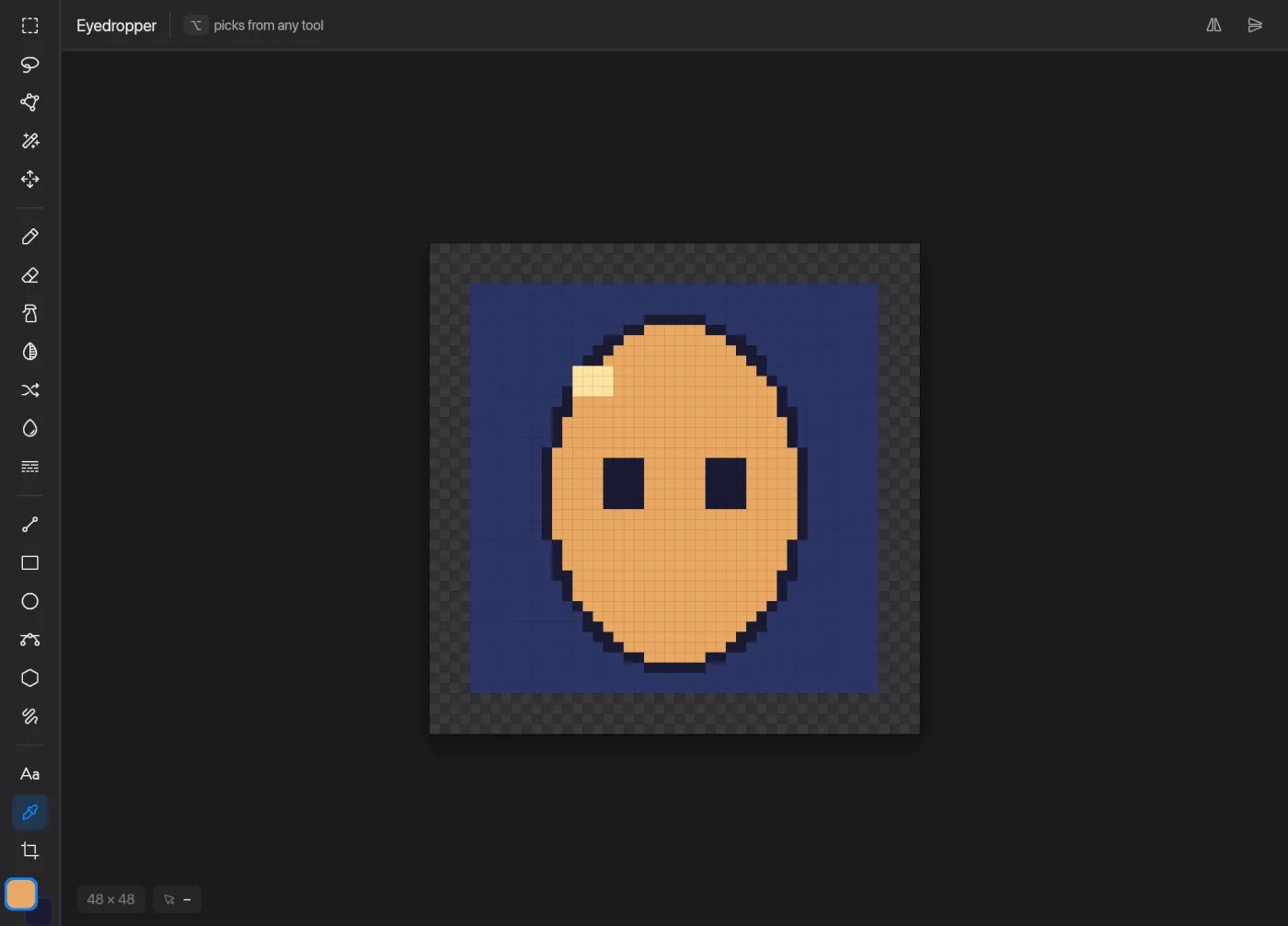
Eyedropper in Pixmith

Eyedropper

Take a color from the canvas.

  1. Click or drag over the canvas: the primary color follows.

You rarely need to switch to it: hold Option with any drawing tool and click.
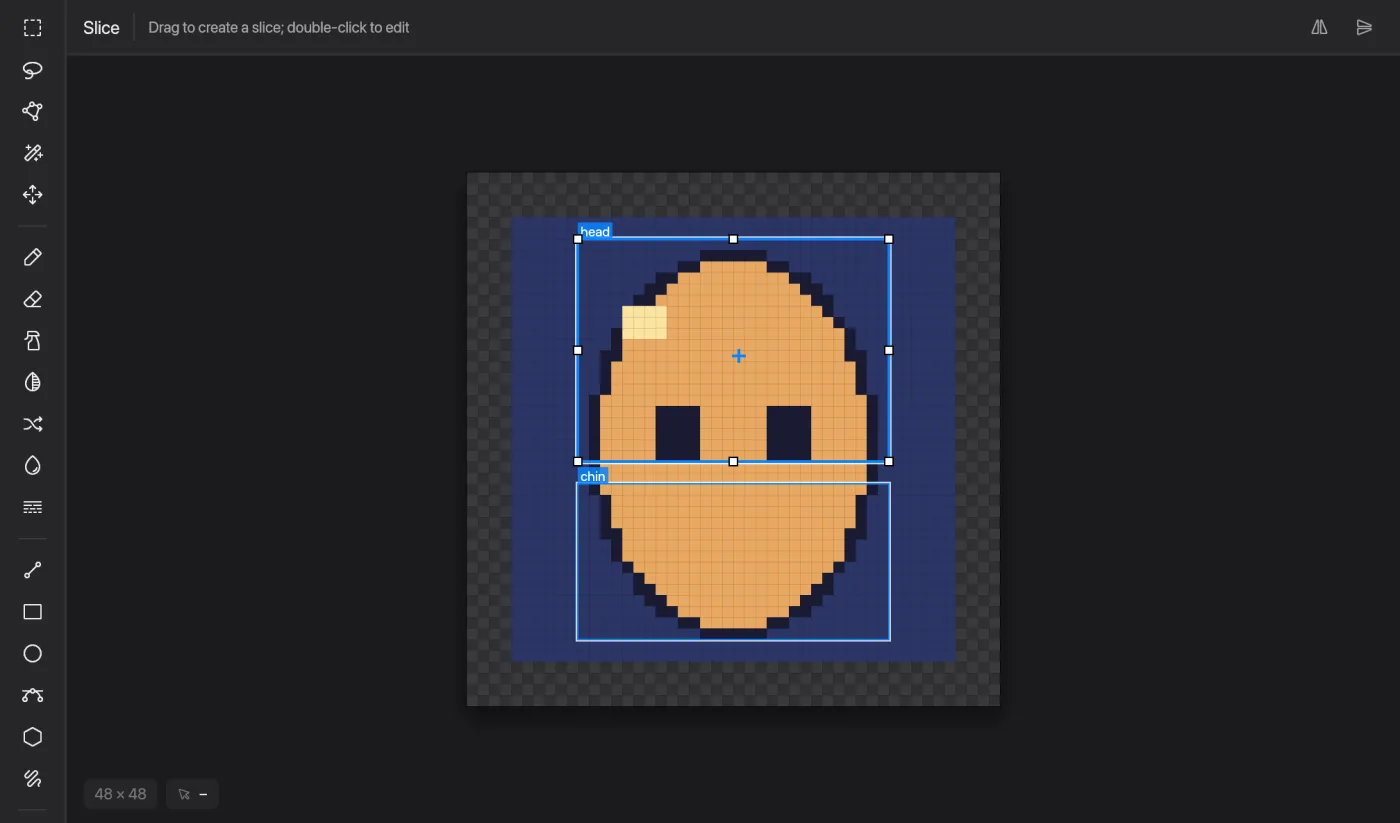
Slice in Pixmith

Slice

Name regions of the sprite, for 9-slice UI or game data.

  1. Drag on an empty spot to make a slice.
  2. Click a slice to select it, drag to move, drag its handles to resize.
  3. Double-click to edit its name and settings. Delete removes it.

Drawing modes

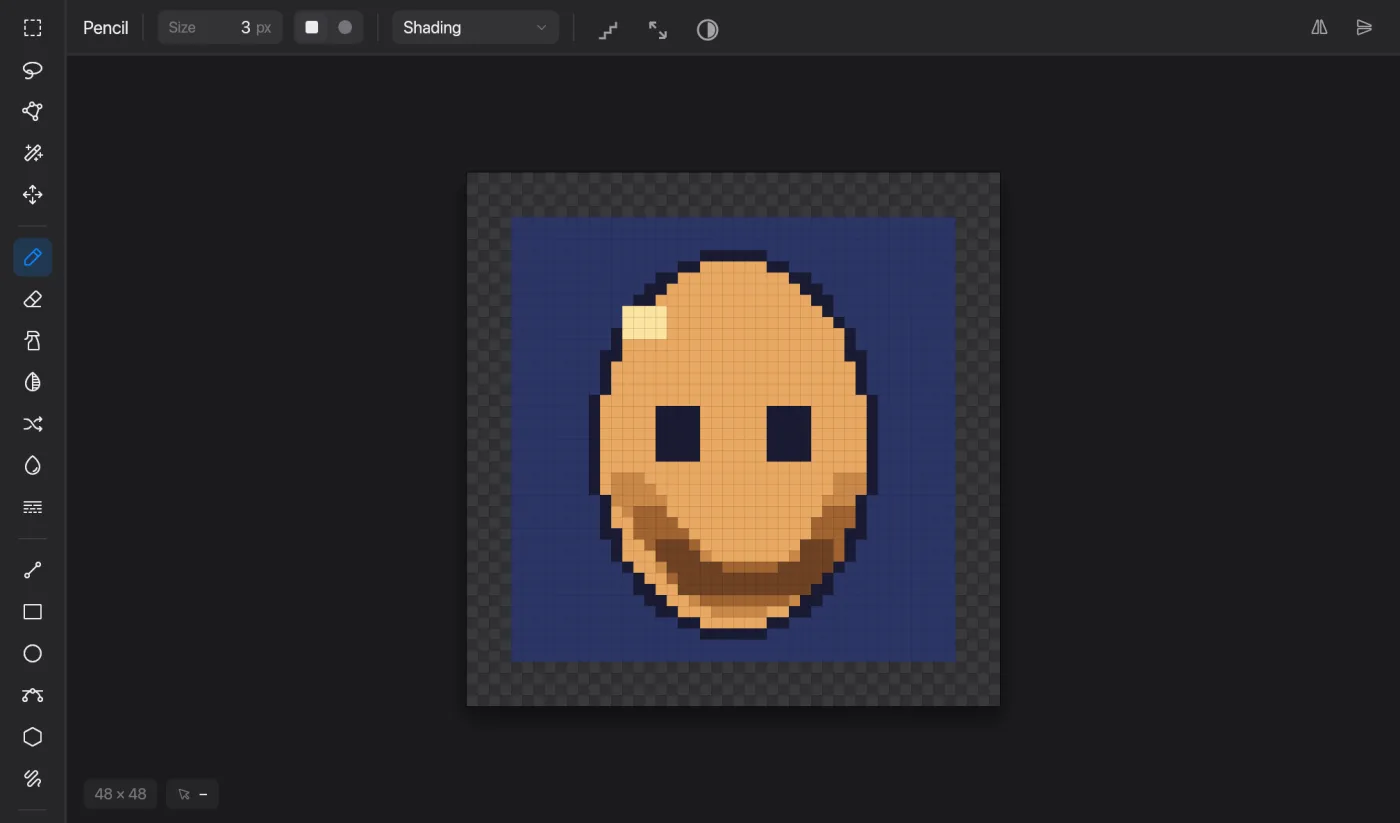
Ink modes in Pixmith

Ink modes

Change how a stroke treats the pixels under it.

  1. Simple replaces pixels. Alpha Compositing blends the color over them.
  2. Lock Alpha only recolors pixels that are already there, so you never paint outside the shape.
  3. Behind paints under existing pixels.
  4. Shading moves each pixel one step along your palette from the primary toward the secondary color. Right-click steps back.

Find it in the options bar of the pencil, spray and shape tools, or under Drawing → Ink Mode.

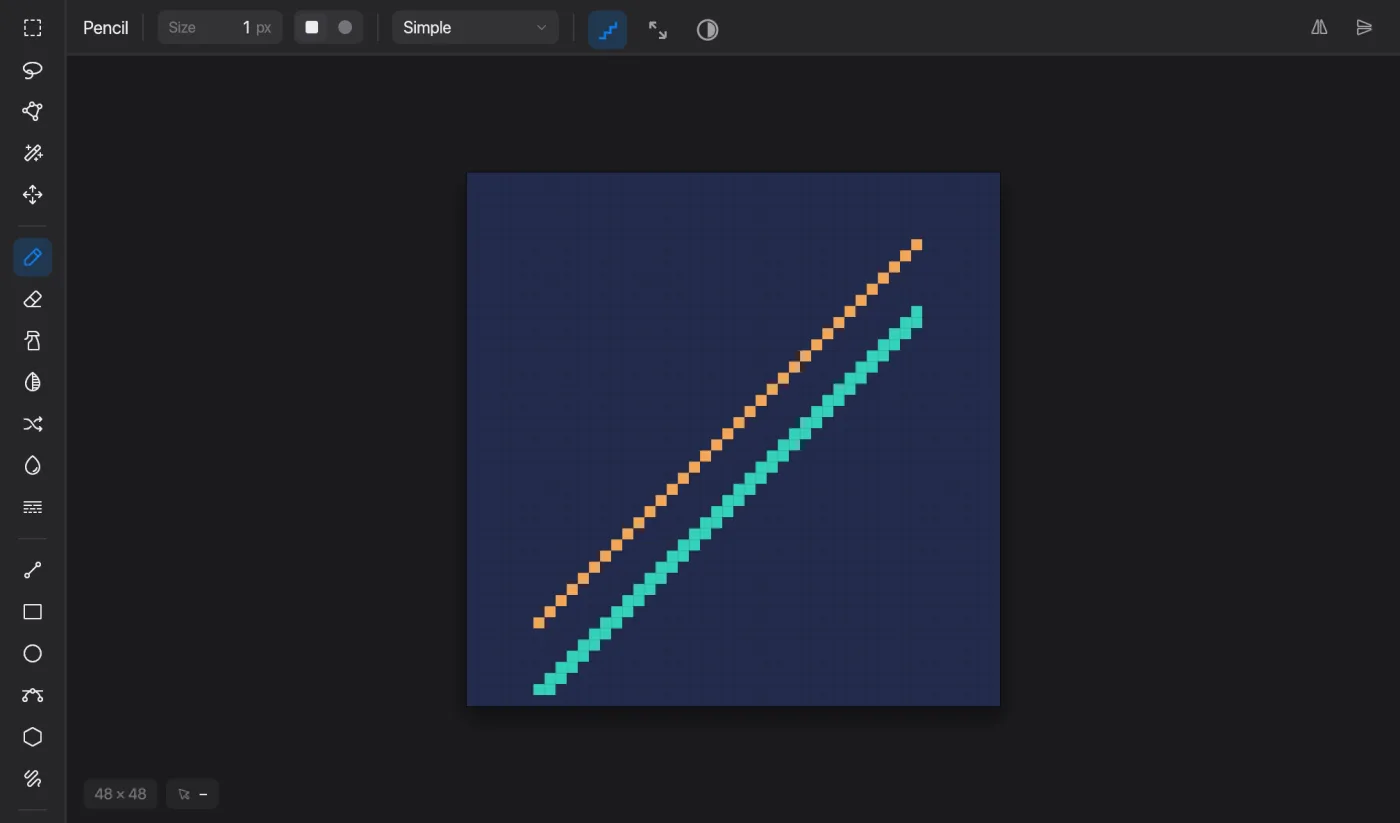
Pixel-perfect in Pixmith

Pixel-perfect

Clean one-pixel lines without double corners.

  1. Turn on the Pixel-perfect chip in the pencil's options bar, or Drawing → Pixel-perfect Pencil.
  2. It applies to pencil and eraser strokes.
Symmetry in Pixmith

Symmetry

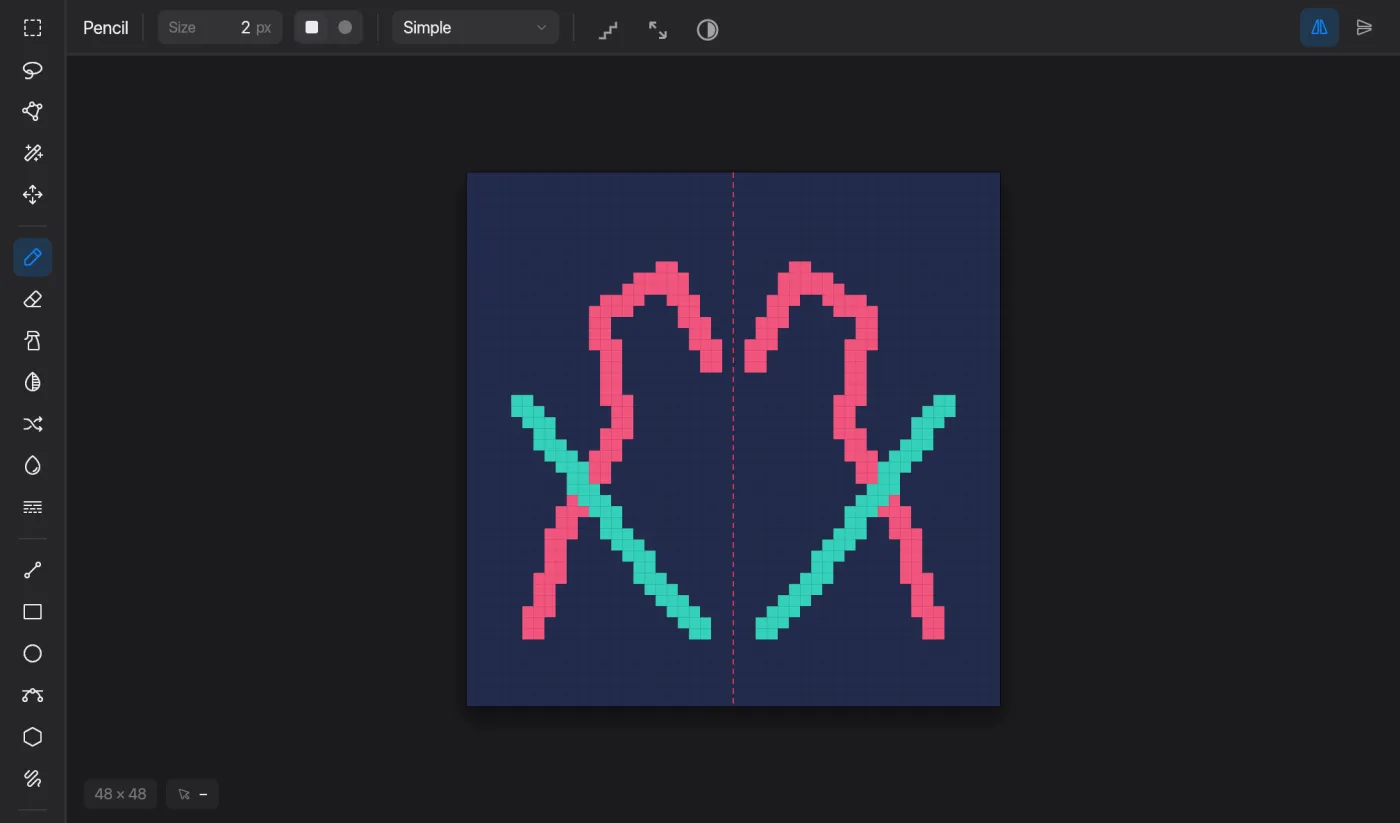
Draw one side, get both.

  1. Turn on Mirror left/right or Mirror top/bottom at the right end of the options bar (or Drawing → Mirror).
  2. Pink dashed guides show the mirror line across the canvas center.

Animation

Frames and layers in Pixmith

Frames and layers

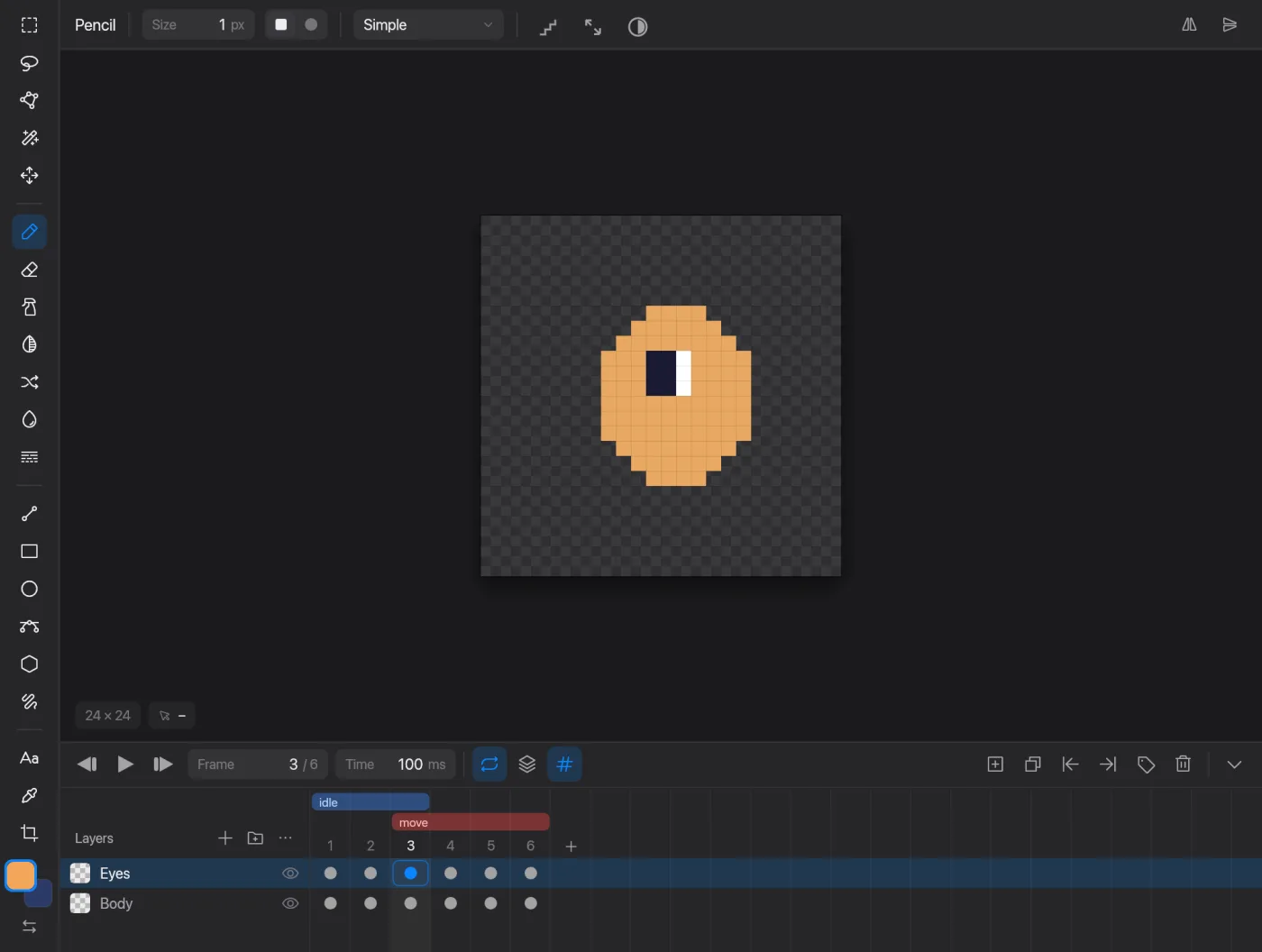
Build an animation in the timeline.

  1. New frame Option+Cmd+N, duplicate frame Shift+Cmd+D, new layer Shift+Cmd+N.
  2. Group frames with tags such as idle, run or attack: each tag becomes its own animation in Godot.
Space
Play or pause
,
Previous frame
.
Next frame
Onion skin in Pixmith

Onion skin

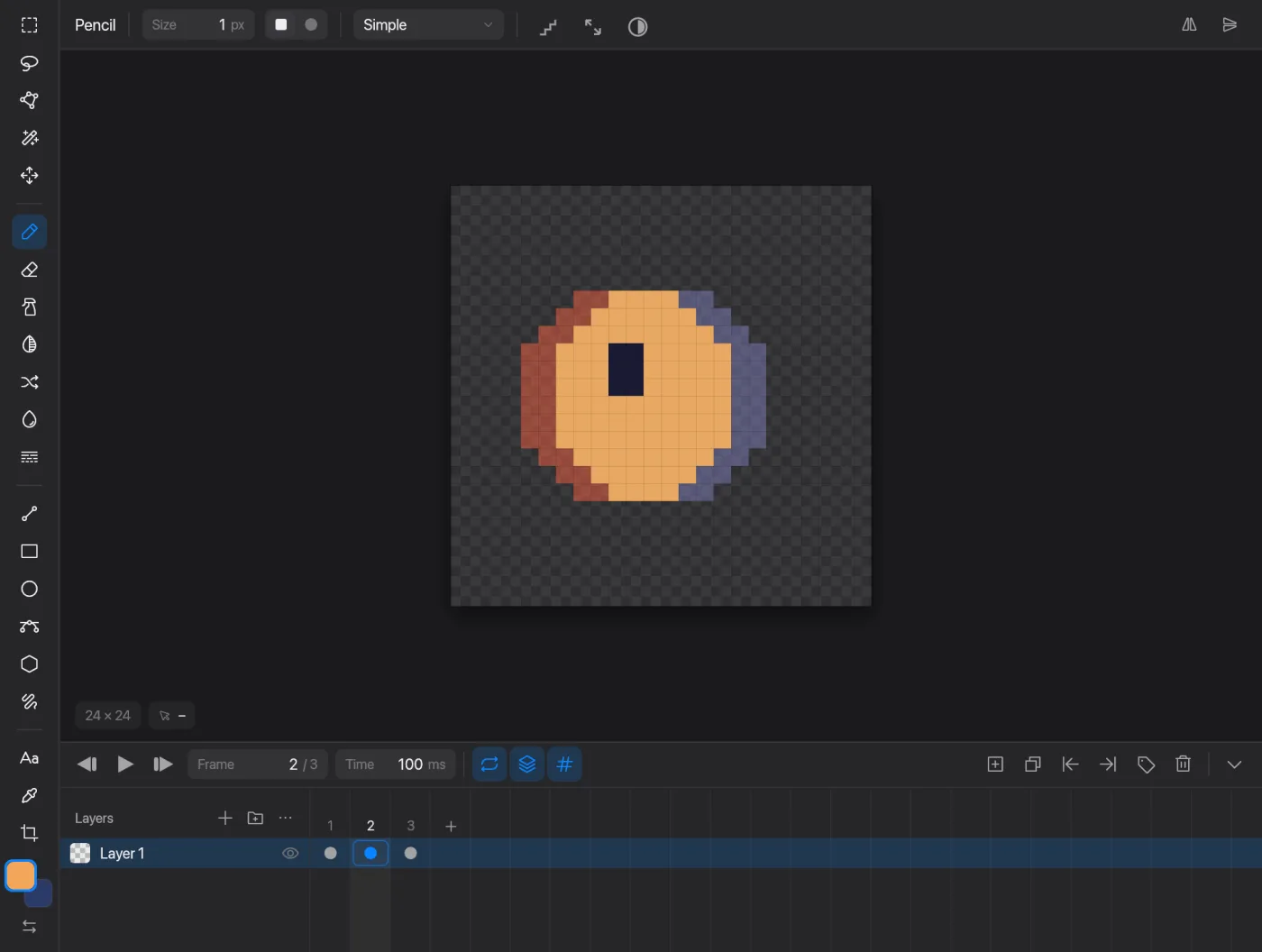
See the frames before and after the one you draw.

  1. Turn it on in the timeline header or Sprite → Onion Skin.
  2. In View → View Options choose how many frames (0–3 each side), opacity, and a red past / blue future tint.

Tilemaps and isometric

Tilemap layers in Pixmith

Tilemap layers

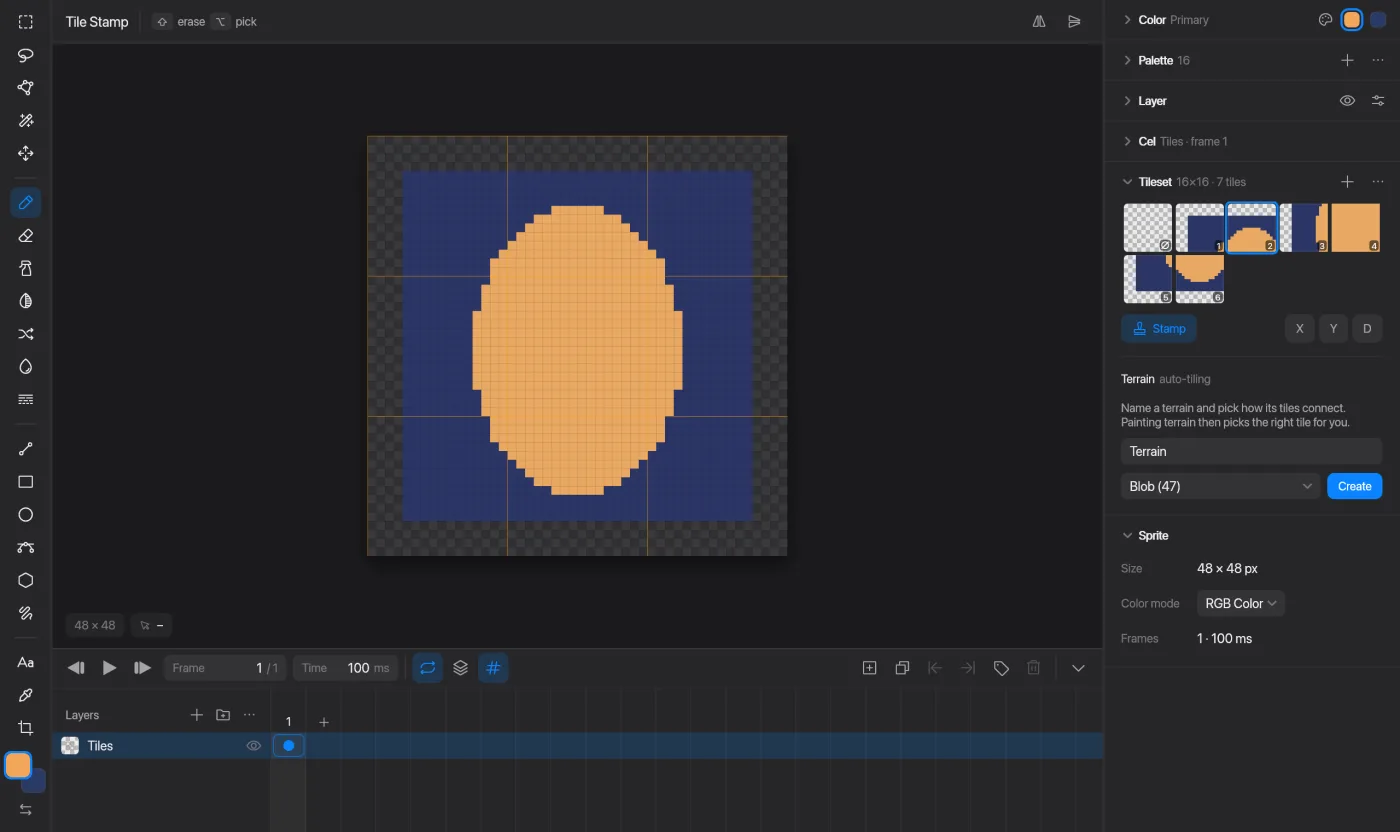
Paint levels from a tileset instead of single pixels.

  1. Tilemap → New Tilemap Layer, or convert an existing layer.
  2. Turn on Tilemap → Tile Stamp Mode, pick a tile and click with the pencil to place it.
  3. Flip X, Y or diagonal with the chips in the tilemap panel.
Shift+click
Erase a tile
Option+click
Pick the tile under the cursor
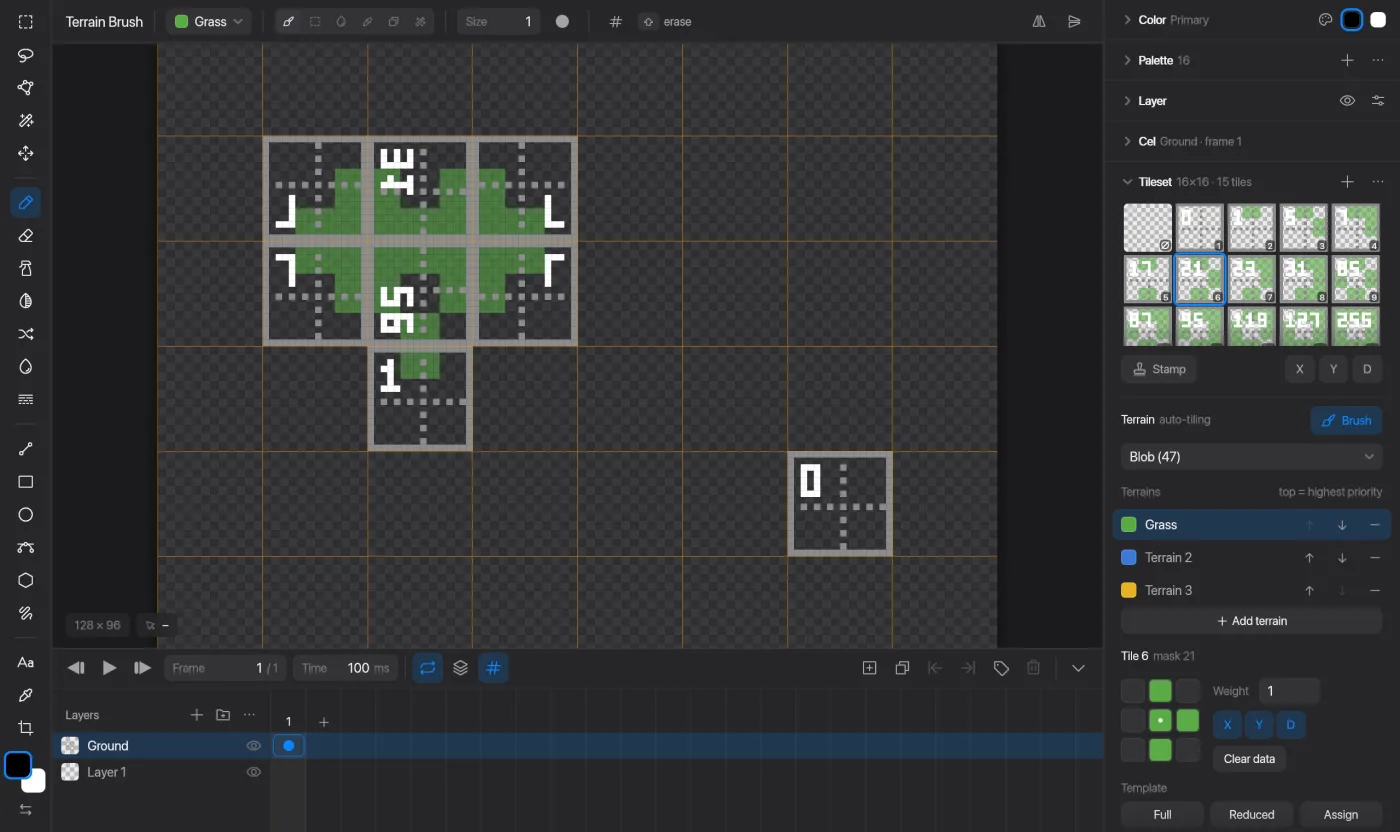
Terrain brush in Pixmith

Terrain brush

Auto-tiling: paint ground and the edges join themselves.

  1. Open the Terrain panel and turn on Brush.
  2. Paint with Brush, Rect or Fill; Pick, Stamp and Auto are in the same row.
  3. Size goes from 1 to 16 cells, square or round.
Shift or right-click
Erase terrain
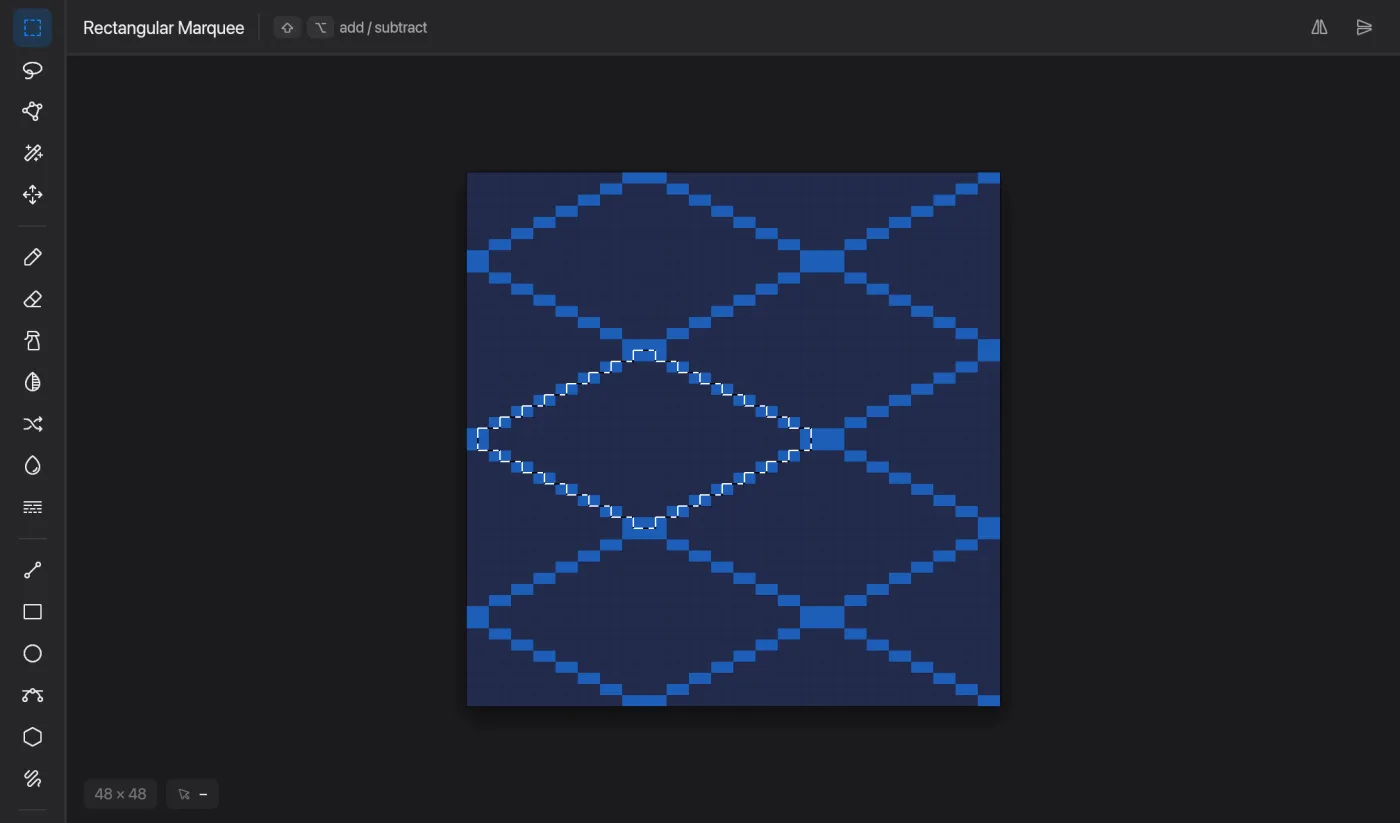
Isometric grid in Pixmith

Isometric grid

A diamond grid for isometric art.

  1. Turn on View → Isometric Grid.
  2. Set the tile size (default 32×16) and offsets in View → View Options → Custom Grid.
  3. Select → Isometric Tile selects the diamond under the cursor.

Godot

Export to Godot in Pixmith

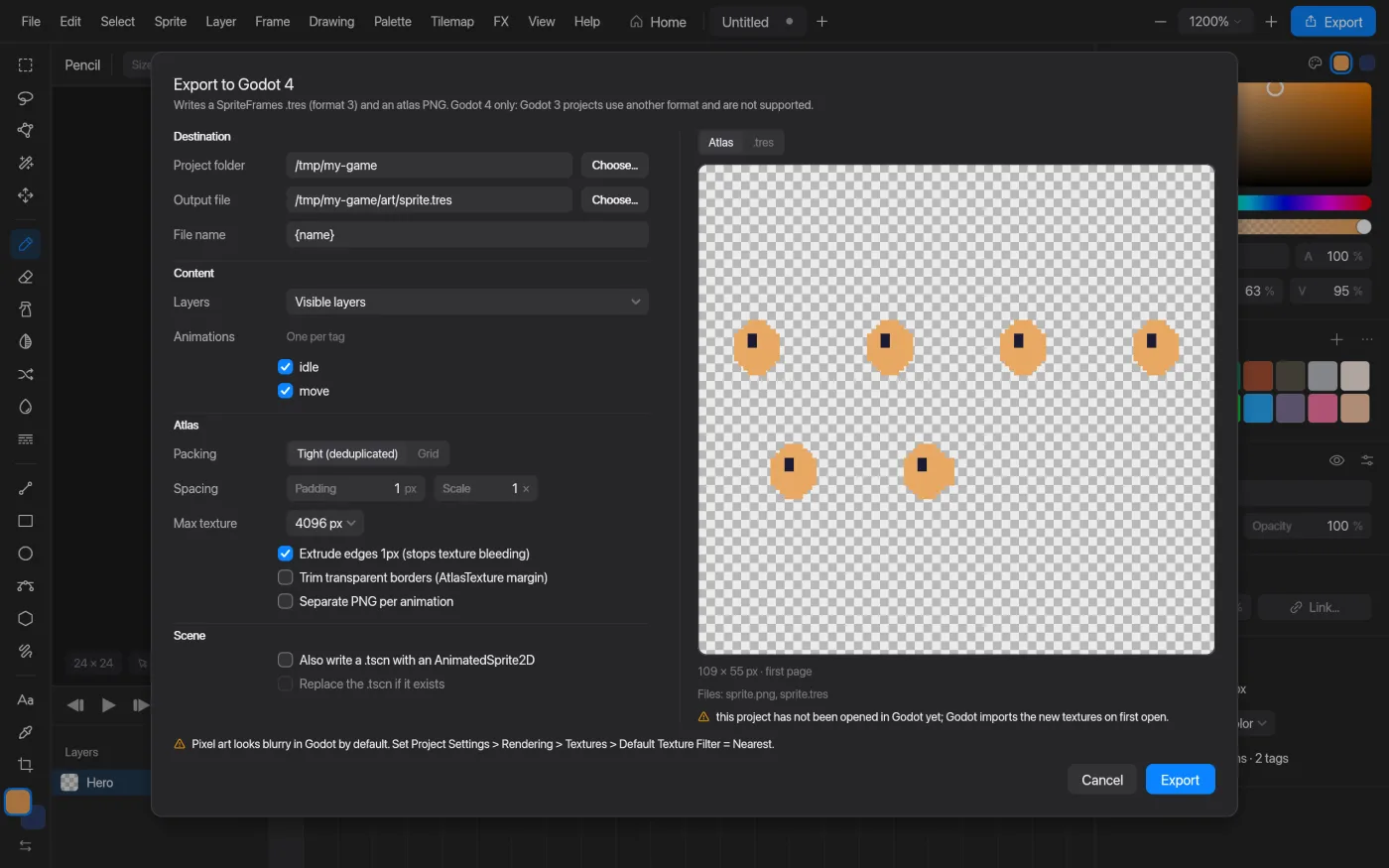
Export to Godot

SpriteFrames and TileSets ready for Godot 4, with ids that stay stable.

  1. File → Export to Godot… and choose a folder in your Godot project.
  2. After changes, File → Re-export to Godot (Shift+Cmd+G) writes to the same place.
  3. For tilesets use File → Export Tileset to Godot….